Core Lessons: Demo Reel
Below lists out all modules and lessons included within this curriculum.
Lessons are in video format with downloadable project files.
Core Lessons:
Demo Reel
Below lists out all modules and lessons included within this curriculum.
Lessons are in video format with downloadable project files.
Lesson Block: Demo Reel
This module guides students through the process of creating a professional demo reel to showcase their skills for studios, employers, or freelance clients.
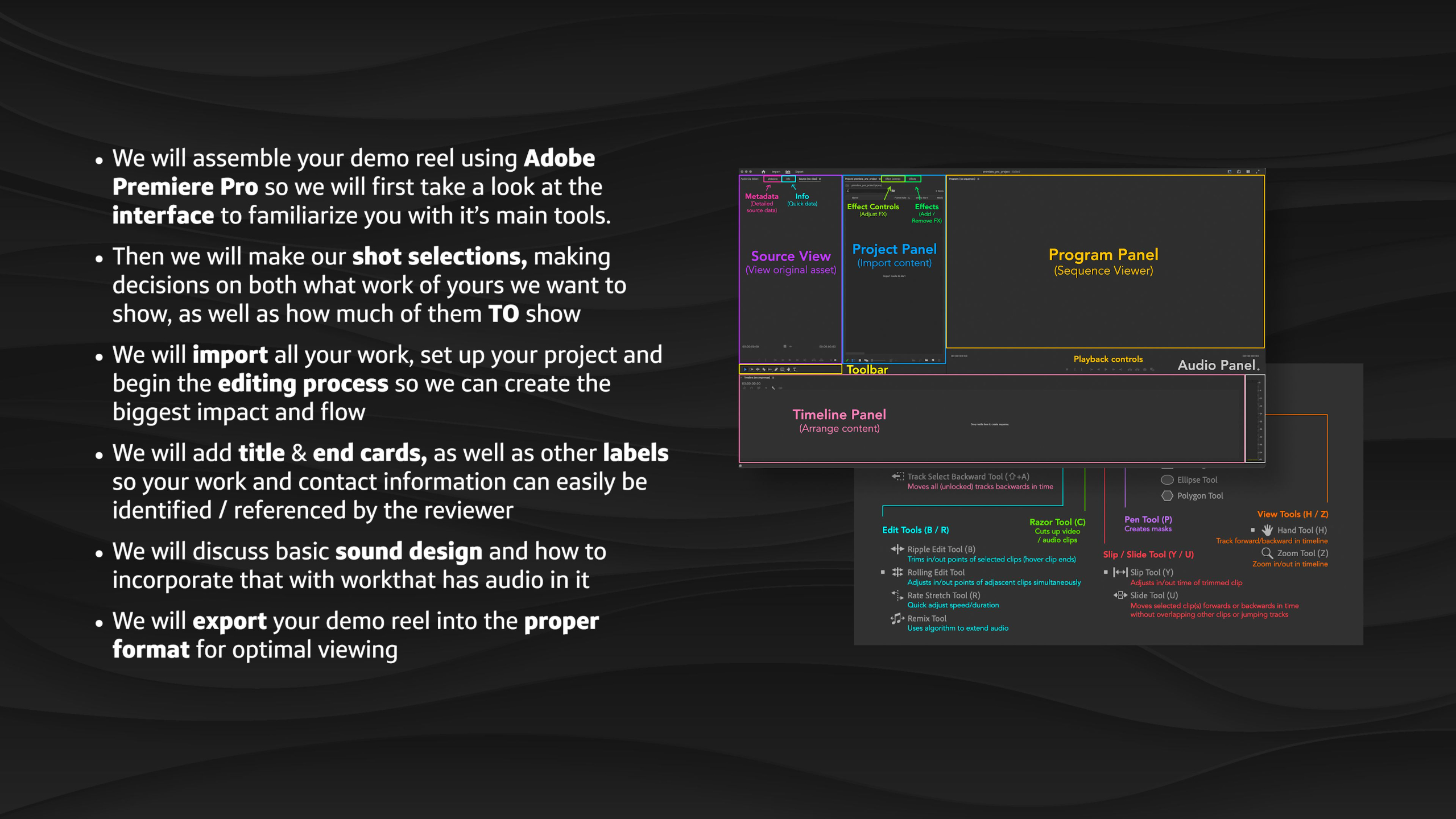
Students will learn the basics of Adobe Premiere Pro to organize and edit their best work, select strong portfolio pieces, add titles and sound design, and export a polished final video that functions as a visual resume.
Lesson 1: Demo Reel Overview
This lesson introduces the Demo Reel module, where students begin organizing their completed portfolio work into a clean, concise video that can be shared with studios, employers, or clients. Students will learn how to select their strongest pieces, edit them in Adobe Premiere Pro, add labels and contact information, handle audio, export properly, and keep their reel updated over time.
Lesson 5: Title Card & Labels
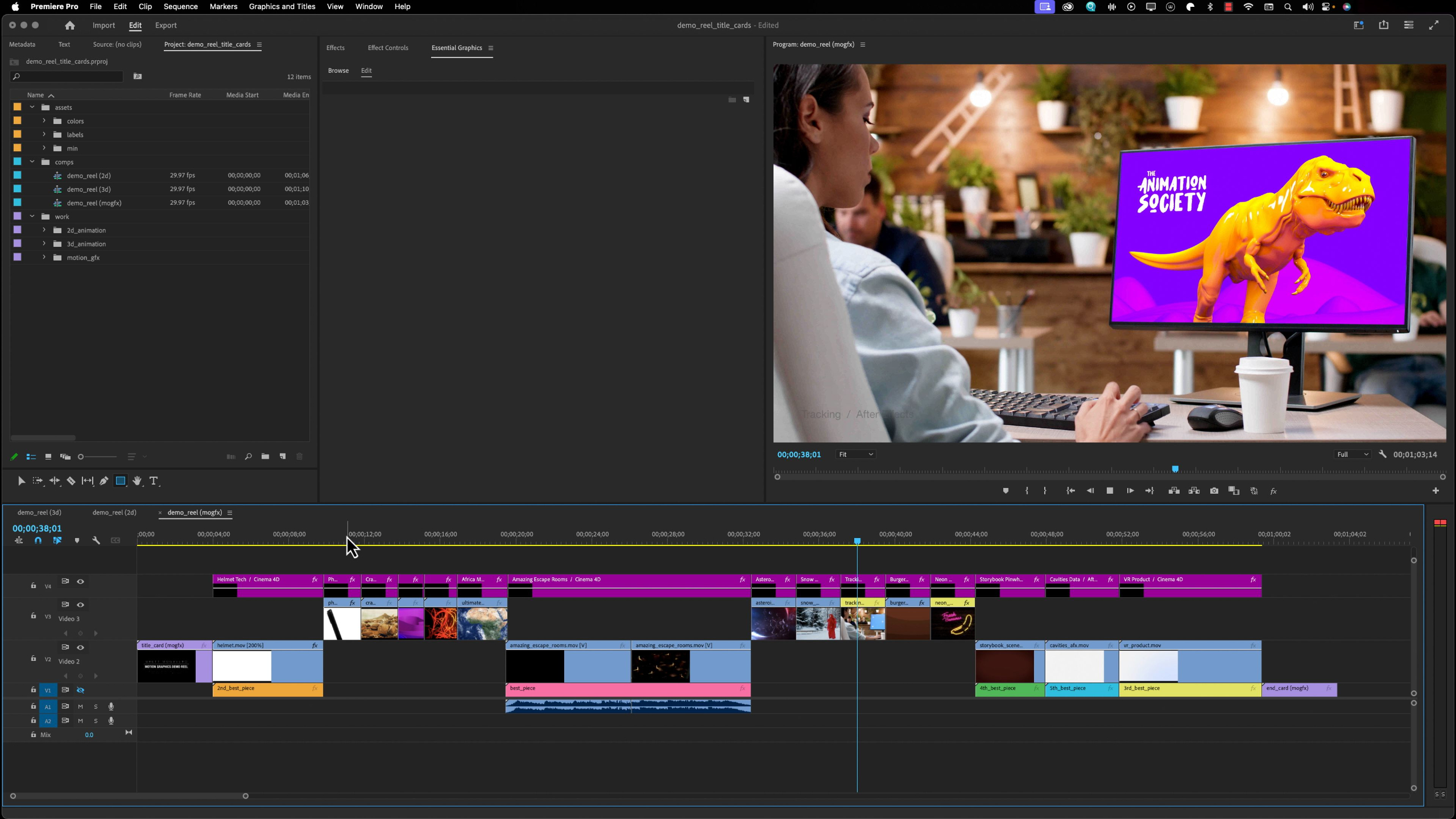
This lesson teaches students how to add clear title cards, end cards, and project labels to their demo reel so reviewers can quickly understand who they are, what they do, and how to contact them. Students will also learn how to label individual pieces with project names, software, techniques, and personal contributions so their reel feels professional, organized, and easy to review.
Lesson 2: Software Walkthrough: Premiere Pro
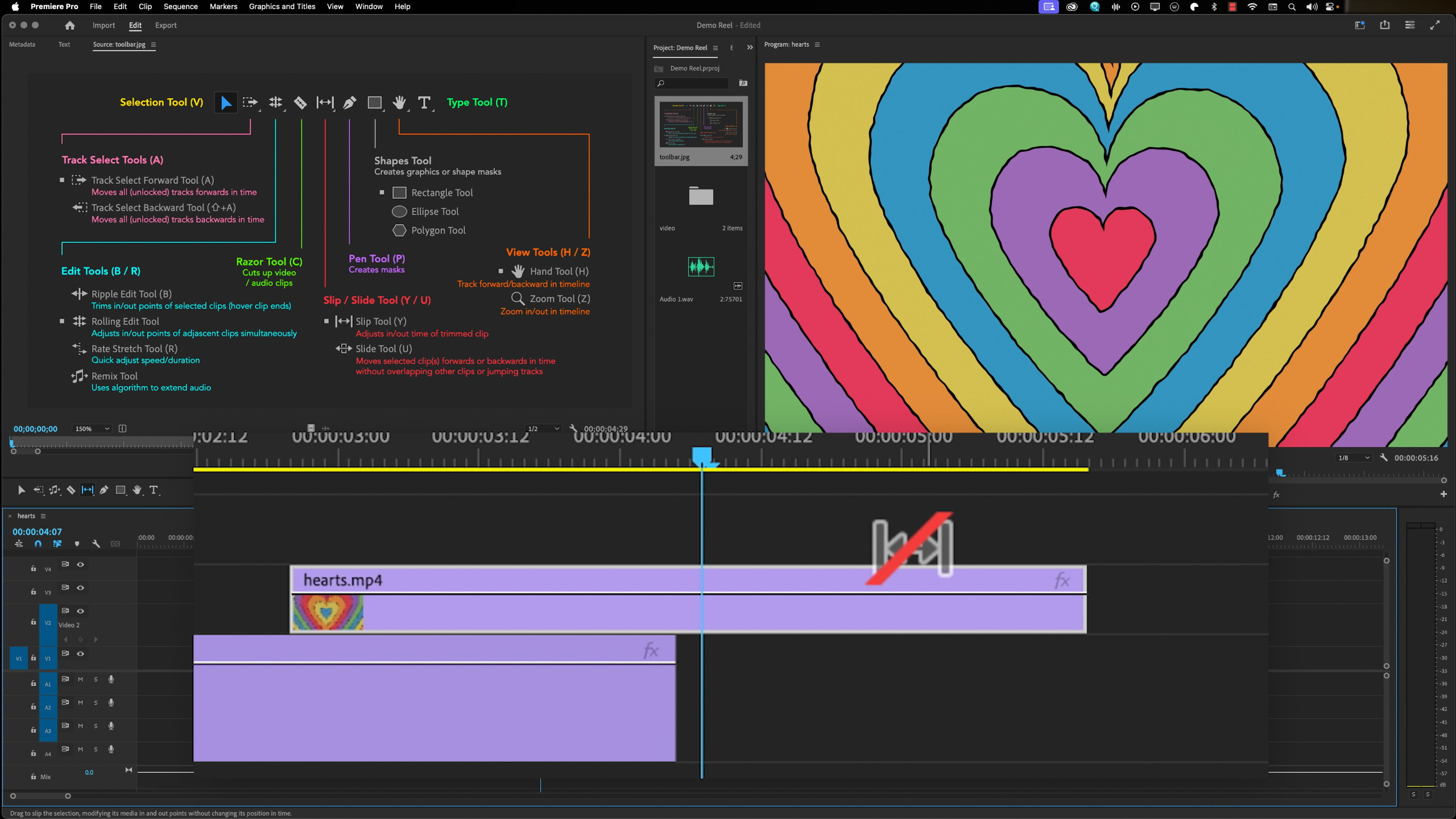
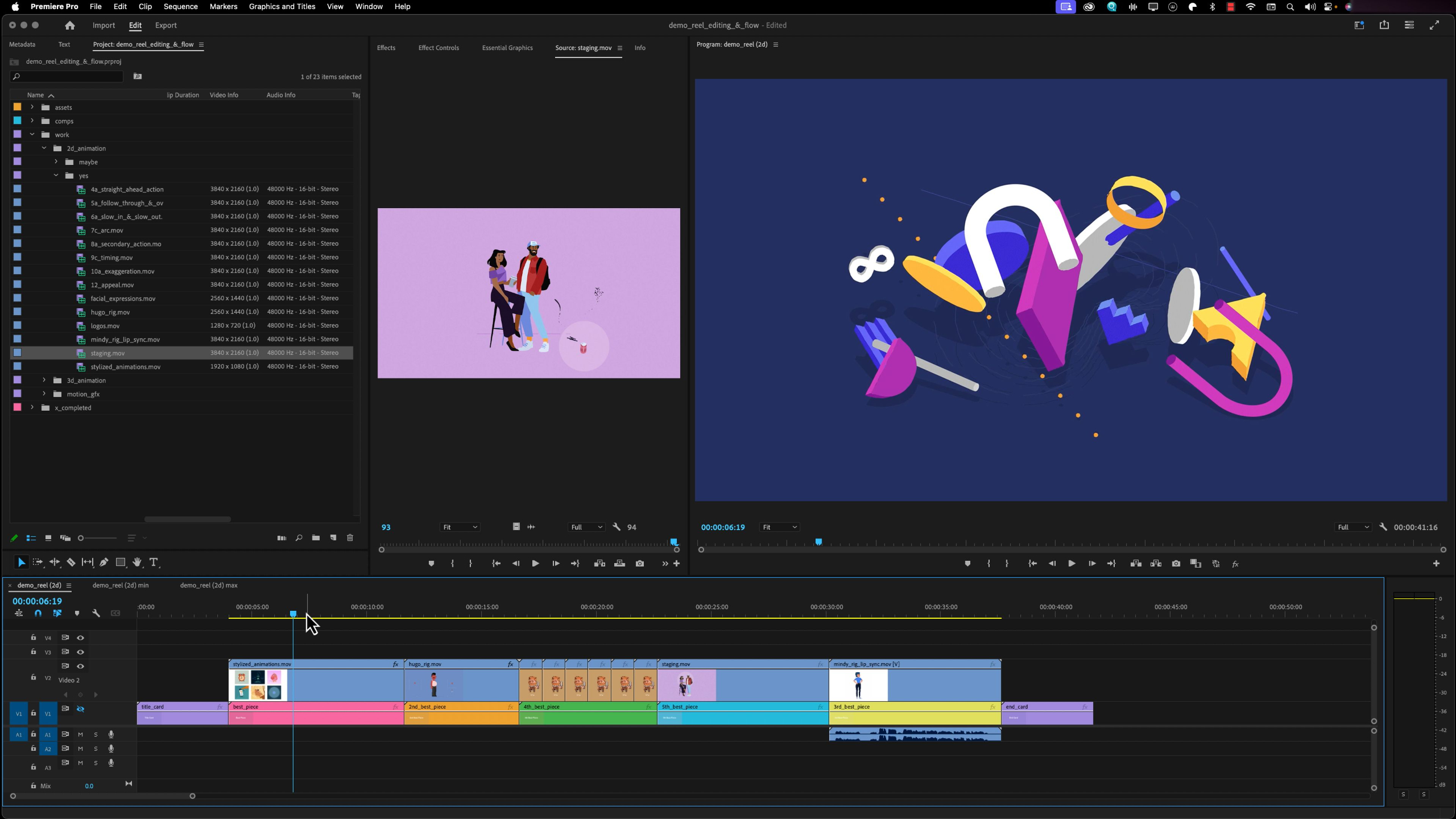
This lesson gives students a practical walkthrough of Adobe Premiere Pro, focusing on the interface, panels, timeline, tools, menus, settings, and export workflow needed to build a demo reel. Students will get comfortable navigating the software so they can import their finished work, edit clips together, manage audio, and prepare their reel for final output.
Lesson 6: Sound Design
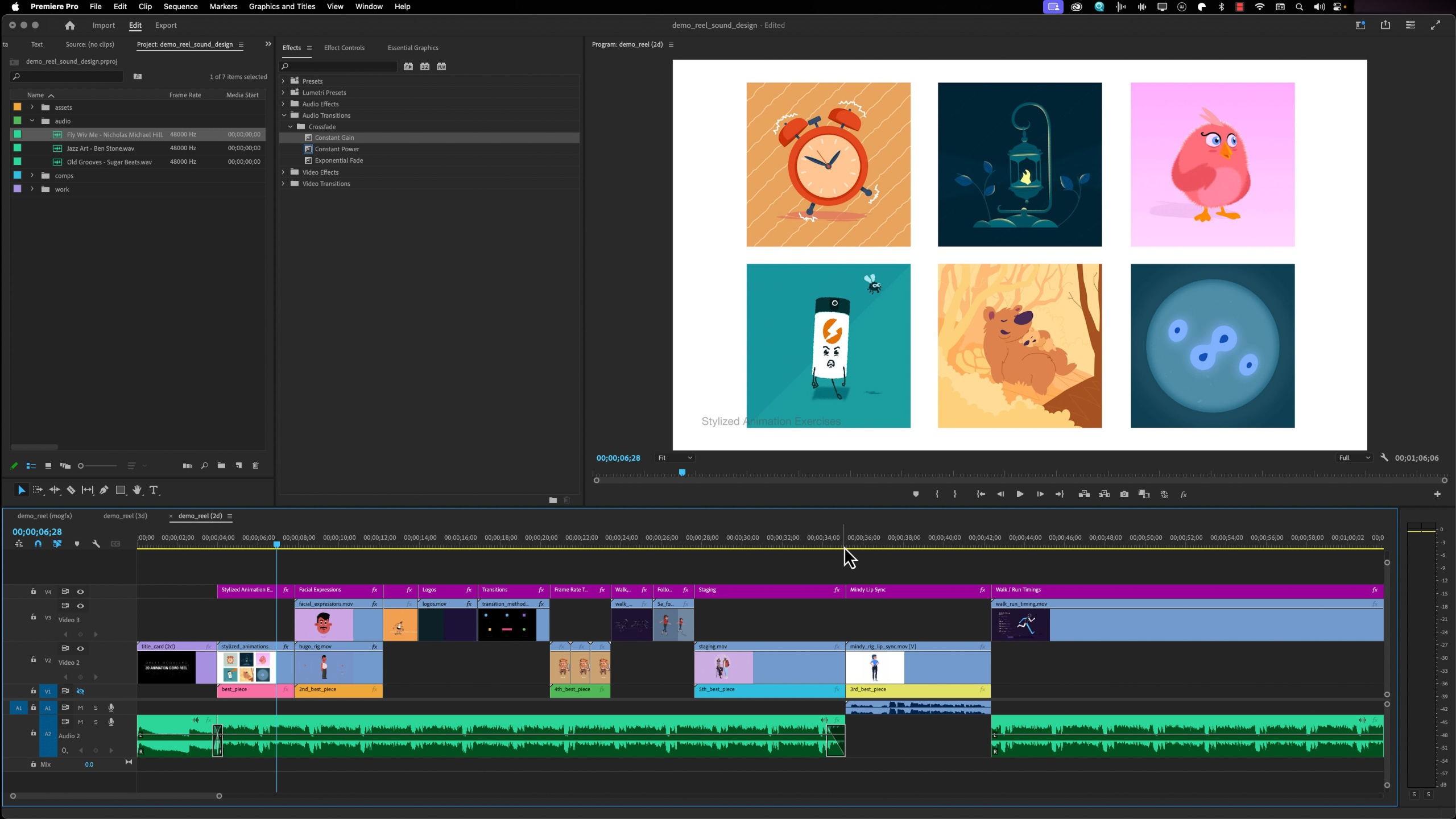
This lesson explains how to handle sound design in a demo reel without distracting from the work itself. Students will learn when to use subtle background music, when to avoid it, how to fade around dialogue or existing audio, and why clean, low-volume sound choices can help keep the reviewer focused on the visuals.
Lesson 3: Shot Selection
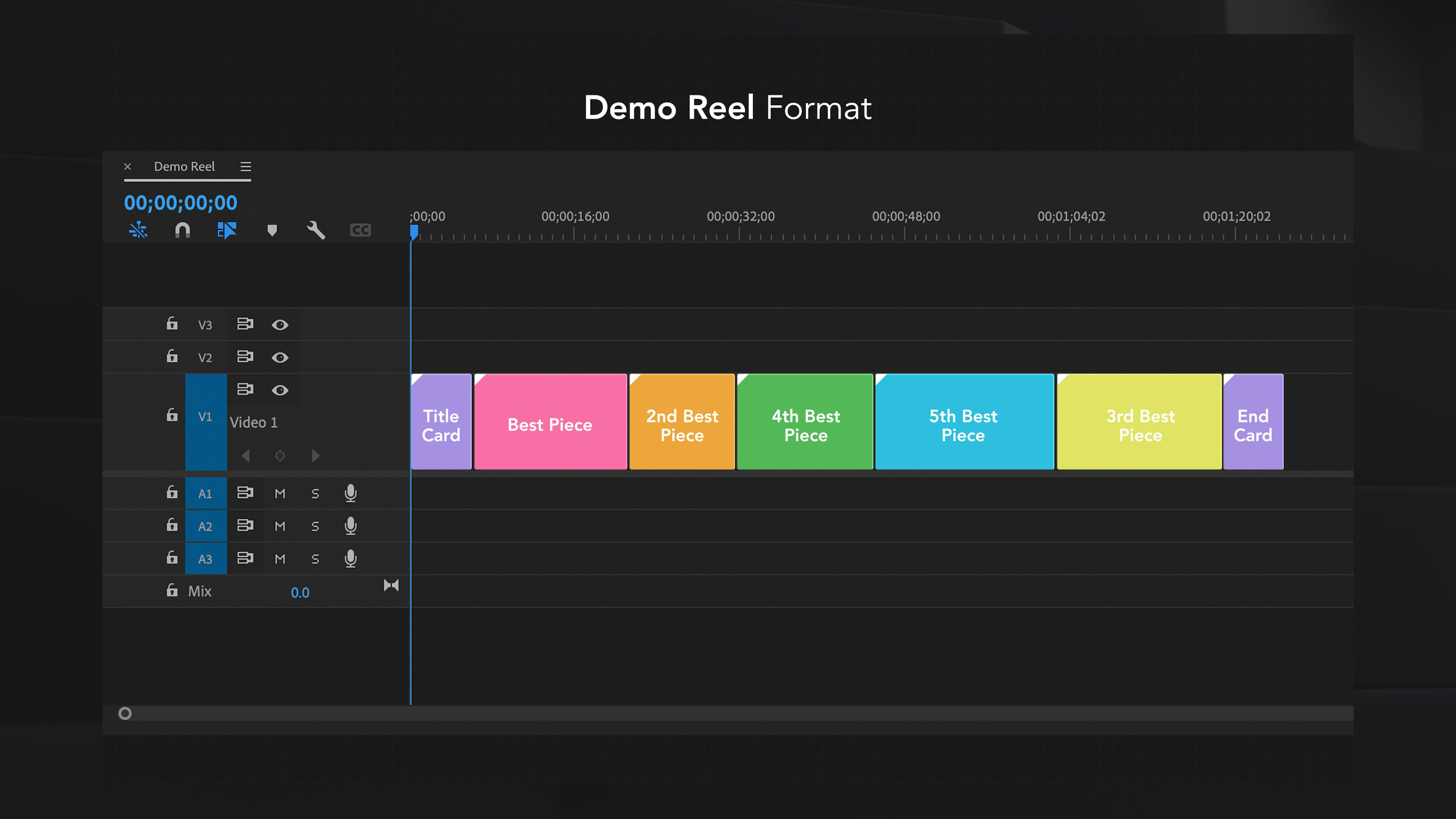
This lesson teaches students how to choose the strongest and most relevant work for their demo reel based on the type of job, studio, or client they want to attract. Students will learn how to order their pieces strategically, keep the reel short and focused, and tailor shot selections for 2D animation, 3D character animation, or motion graphics.
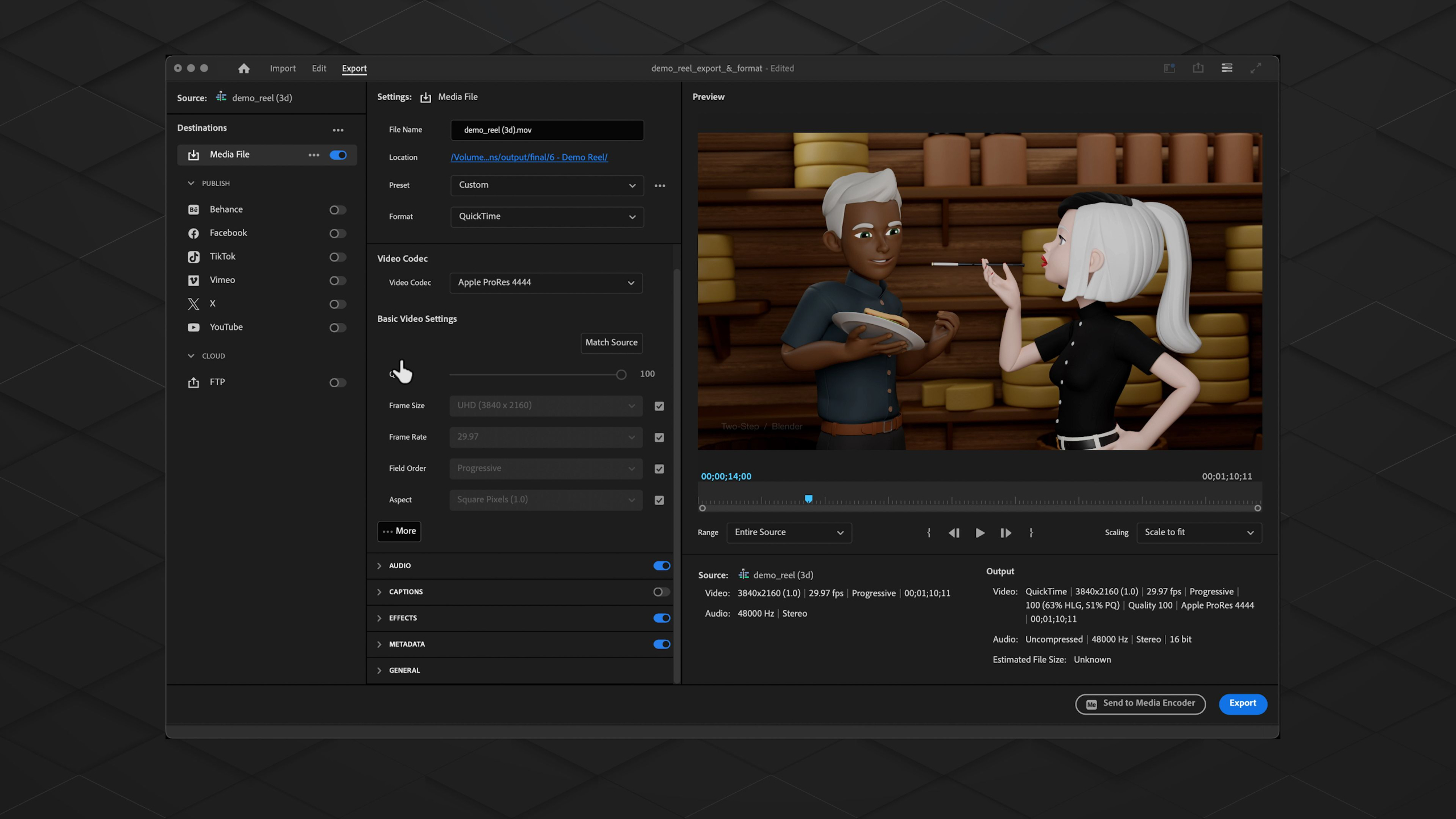
Lesson 7: Export & Format
This lesson shows students how to export their completed demo reel from Premiere Pro using the right format, codec, audio settings, and quality options for professional playback. Students will also learn where to host or upload their reel, including Vimeo, YouTube, personal websites, or direct application portals, so their work is easy to share with employers and clients.
Lesson 4: Editing & Flow
This lesson walks students through setting up their demo reel project in Adobe Premiere Pro, importing their selected work, checking sequence settings, and arranging clips into a clean, effective edit. Students will learn how to shape the flow of a 2D, 3D, or motion graphics reel so their strongest work grabs attention while the overall presentation stays focused, polished, and easy to update.
Lesson 8: Final Thoughts & Upkeep
This final lesson wraps up the Demo Reel module with advice on keeping your reel updated, continuing to create new work, and staying competitive as your animation career grows. Students are encouraged to keep improving, pursue opportunities from a position of strength, and use their demo reel as an evolving tool for employment, freelancing, or future creative goals.
Lesson 1: Demo Reel Overview
This lesson introduces the Demo Reel module, where students begin organizing their completed portfolio work into a clean, concise video that can be shared with studios, employers, or clients. Students will learn how to select their strongest pieces, edit them in Adobe Premiere Pro, add labels and contact information, handle audio, export properly, and keep their reel updated over time.
Lesson 2: Software Walkthrough: Premiere Pro
This lesson gives students a practical walkthrough of Adobe Premiere Pro, focusing on the interface, panels, timeline, tools, menus, settings, and export workflow needed to build a demo reel. Students will get comfortable navigating the software so they can import their finished work, edit clips together, manage audio, and prepare their reel for final output.
Lesson 3: Shot Selection
This lesson teaches students how to choose the strongest and most relevant work for their demo reel based on the type of job, studio, or client they want to attract. Students will learn how to order their pieces strategically, keep the reel short and focused, and tailor shot selections for 2D animation, 3D character animation, or motion graphics.
Lesson 4: Editing & Flow
This lesson walks students through setting up their demo reel project in Adobe Premiere Pro, importing their selected work, checking sequence settings, and arranging clips into a clean, effective edit. Students will learn how to shape the flow of a 2D, 3D, or motion graphics reel so their strongest work grabs attention while the overall presentation stays focused, polished, and easy to update.
Lesson 5: Title Card & Labels
This lesson teaches students how to add clear title cards, end cards, and project labels to their demo reel so reviewers can quickly understand who they are, what they do, and how to contact them. Students will also learn how to label individual pieces with project names, software, techniques, and personal contributions so their reel feels professional, organized, and easy to review.
Lesson 6: Sound Design
This lesson explains how to handle sound design in a demo reel without distracting from the work itself. Students will learn when to use subtle background music, when to avoid it, how to fade around dialogue or existing audio, and why clean, low-volume sound choices can help keep the reviewer focused on the visuals.
Lesson 7: Export & Format
This lesson shows students how to export their completed demo reel from Premiere Pro using the right format, codec, audio settings, and quality options for professional playback. Students will also learn where to host or upload their reel, including Vimeo, YouTube, personal websites, or direct application portals, so their work is easy to share with employers and clients.
Lesson 8: Final Thoughts & Upkeep
This final lesson wraps up the Demo Reel module with advice on keeping your reel updated, continuing to create new work, and staying competitive as your animation career grows. Students are encouraged to keep improving, pursue opportunities from a position of strength, and use their demo reel as an evolving tool for employment, freelancing, or future creative goals.