After Effects For Motion Graphics
Estimated completion time: 6-8 weeks
Lessons are in video format with downloadable project files.
After Effects For Motion Graphics
Estimated completion time:
6-8 weeks
Lessons are in video format with downloadable project files.
This module teaches the essential skills needed to begin a professional career in motion graphics. We focus on industry-standard techniques like text animation, greenscreen keying, motion tracking, shot stabilization, and creating dynamic visual graphics.
Throughout the lessons, students will build a versatile creative skill set while producing strong portfolio pieces that demonstrate their ability to solve a wide range of visual challenges for clients, studios, and agencies.
The ultimate goal is to help students become adaptable, in-demand Motion Graphics Artists capable of handling professional projects from concept to completion.
Lesson 1: After Effects Overview
This lesson introduces the After Effects for Motion Graphics module, where students begin building the essential skills used in real client and studio work, including text animation, greenscreen keying, stabilization, tracking, and integrating graphics with video. Students will also set up a free Pexels account so they can access unique footage for assignments and start creating portfolio-ready motion graphics projects.
Lesson 7: Transitions
This lesson introduces transitions in After Effects, showing students how to move creatively from one shot or scene to another using wipes, pans, zooms, shapes, glitches, parallax, 3D moves, textures, particles, and more. Students will study a wide range of transition techniques and then create five original transition sequences using different styles.
Lesson 2: Color Control
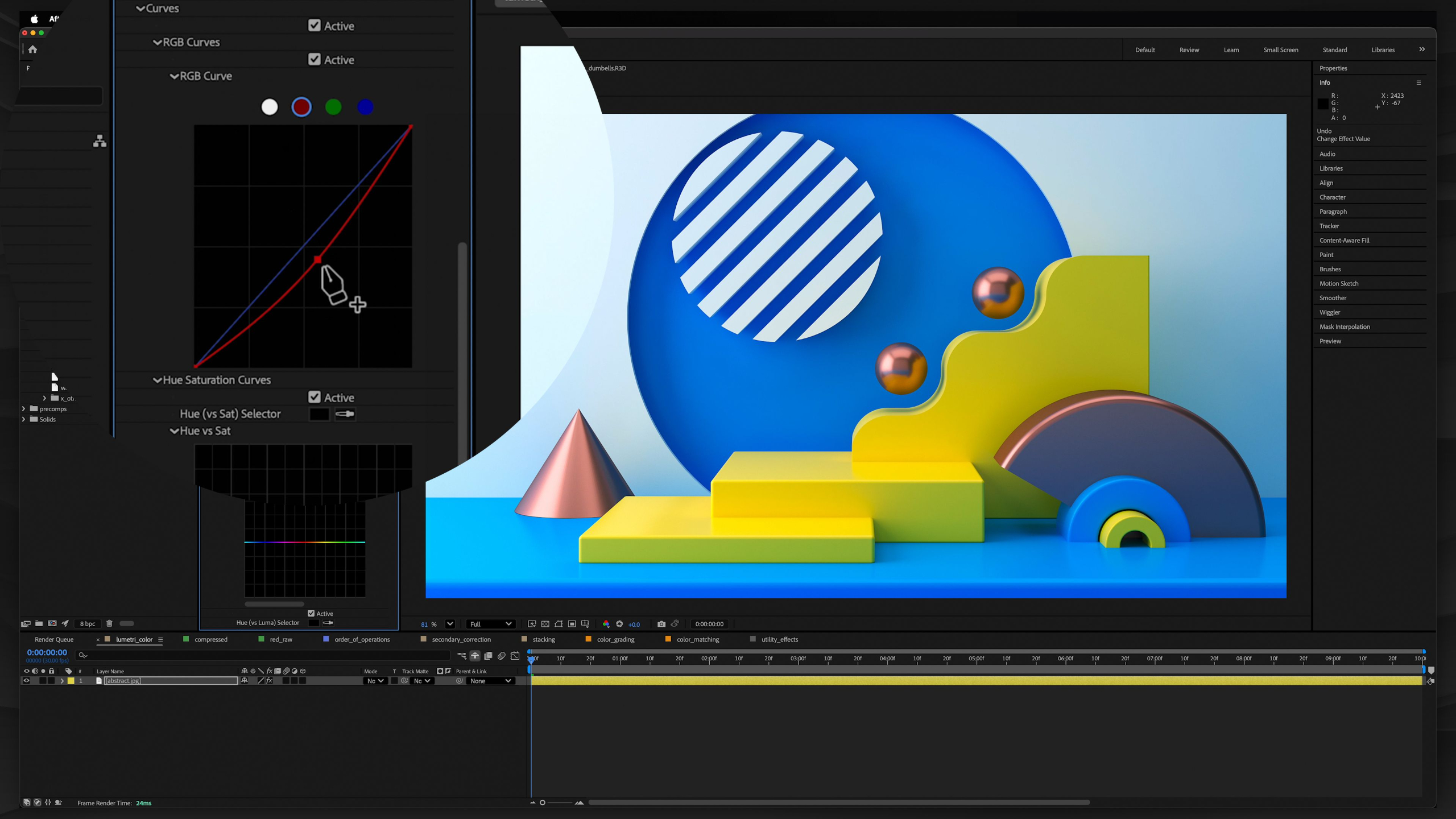
This lesson introduces color control in After Effects, covering the difference between color correction and color grading while teaching students how to use Lumetri Color to adjust exposure, white balance, contrast, LUTs, and stylized looks. Students will experiment with provided footage to practice building a clean color-correction workflow and create more polished, professional-looking motion graphics projects.
Lesson 8: Collages
This lesson introduces collages in motion graphics, showing students how to combine images, videos, tiles, camera movement, 3D space, scripts, and particle systems to tell richer visual stories in a short amount of time. Students will practice building and animating their own collage using custom visuals, tile systems, camera moves, and motion techniques inside After Effects.
Lesson 3: Chroma Key
This lesson introduces chroma keying in After Effects, showing students how to remove green or blue screen backgrounds and composite footage, graphics, and environments together using tools like Keylight. Students will practice creating clean keys in common real-world scenarios, including low-resolution footage, fine hair, motion blur, shallow focus, inconsistent backgrounds, and screen replacements.
Lesson 9: Parallax
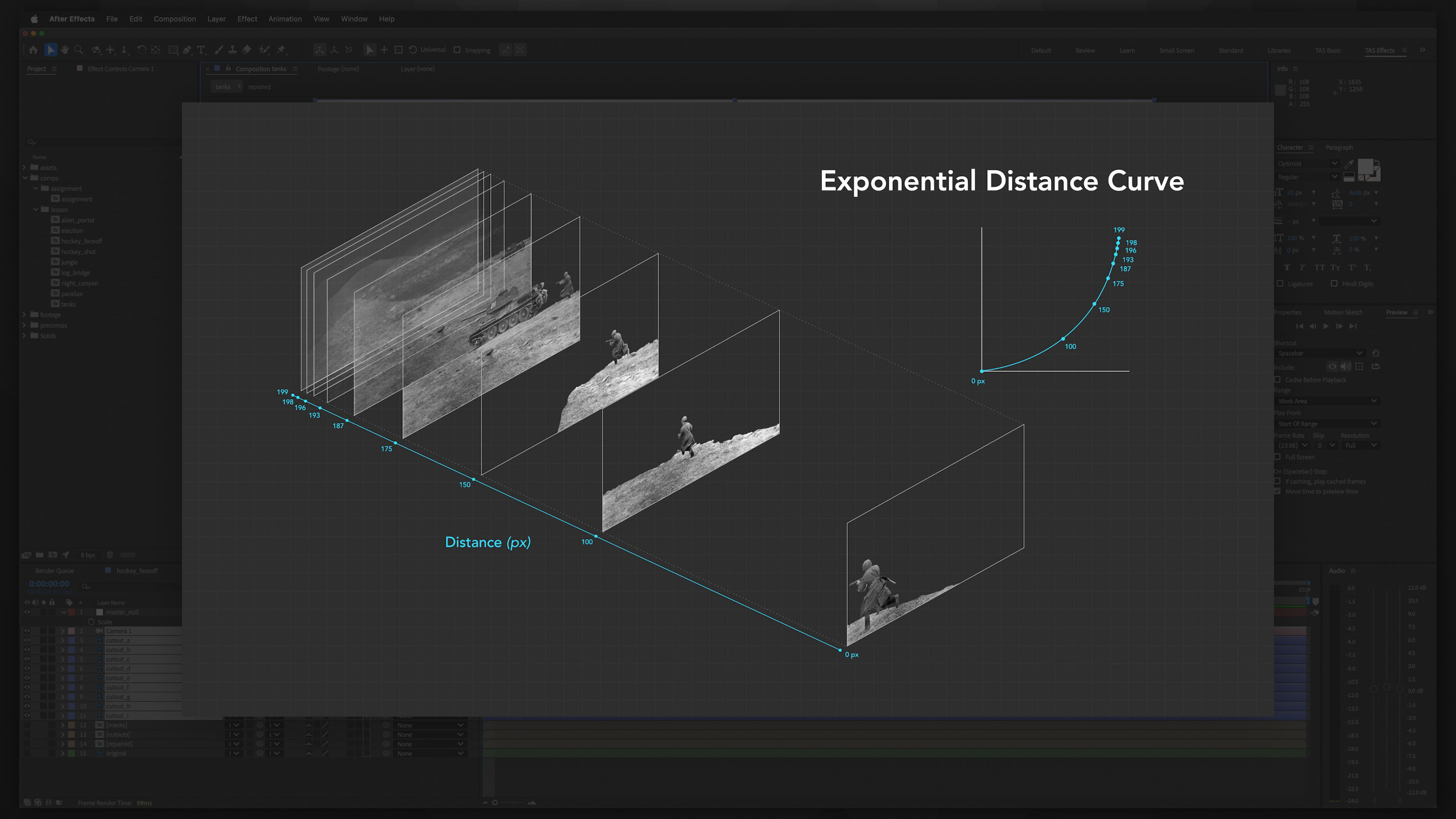
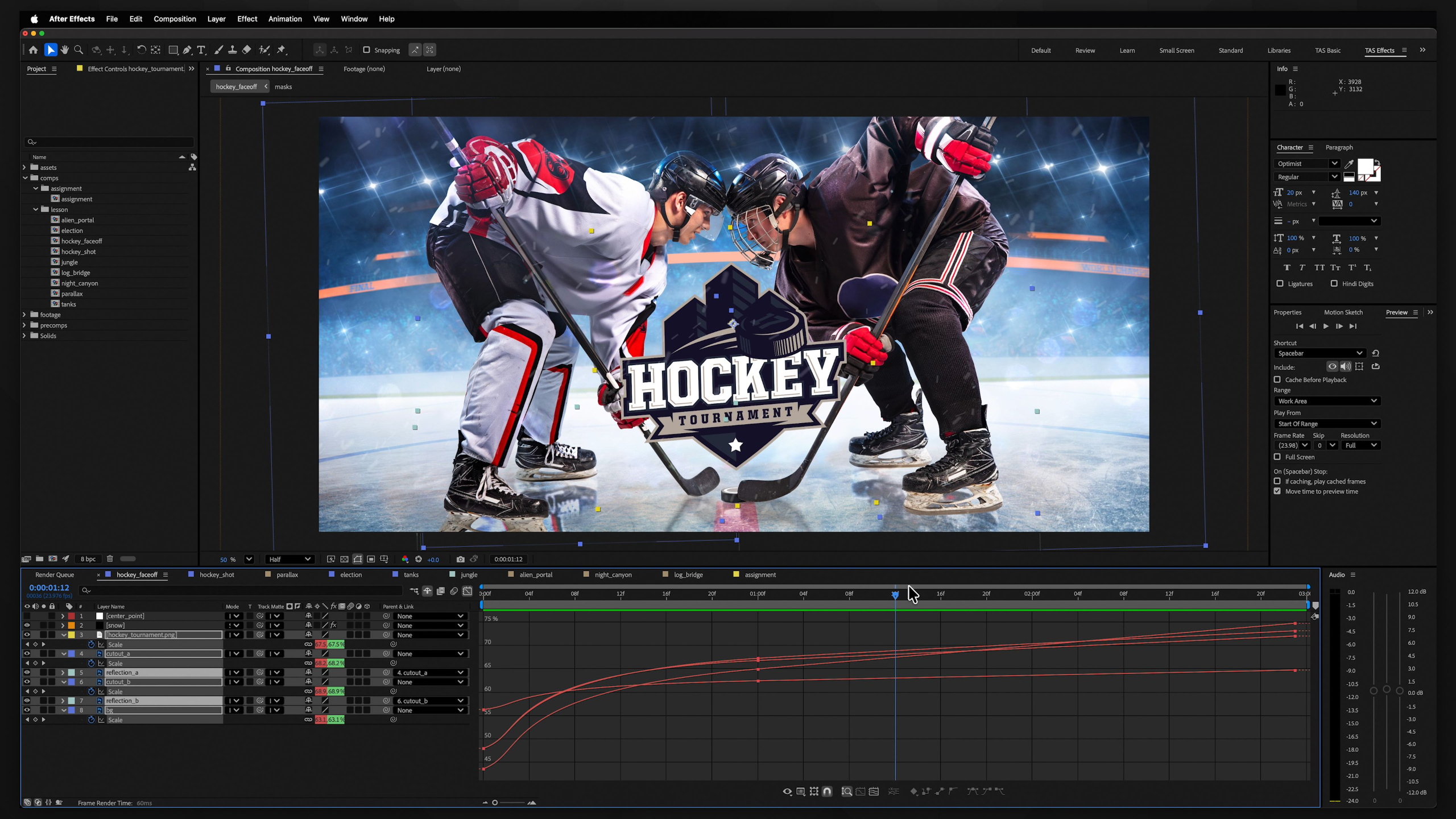
This lesson teaches students how to bring still images to life using parallax, creating the illusion of depth by separating artwork into layers and moving closer objects faster than those farther away. Students will practice both the Null Method and Camera Method, then build their own layered parallax animation for their portfolio.
Lesson 4: Tracking
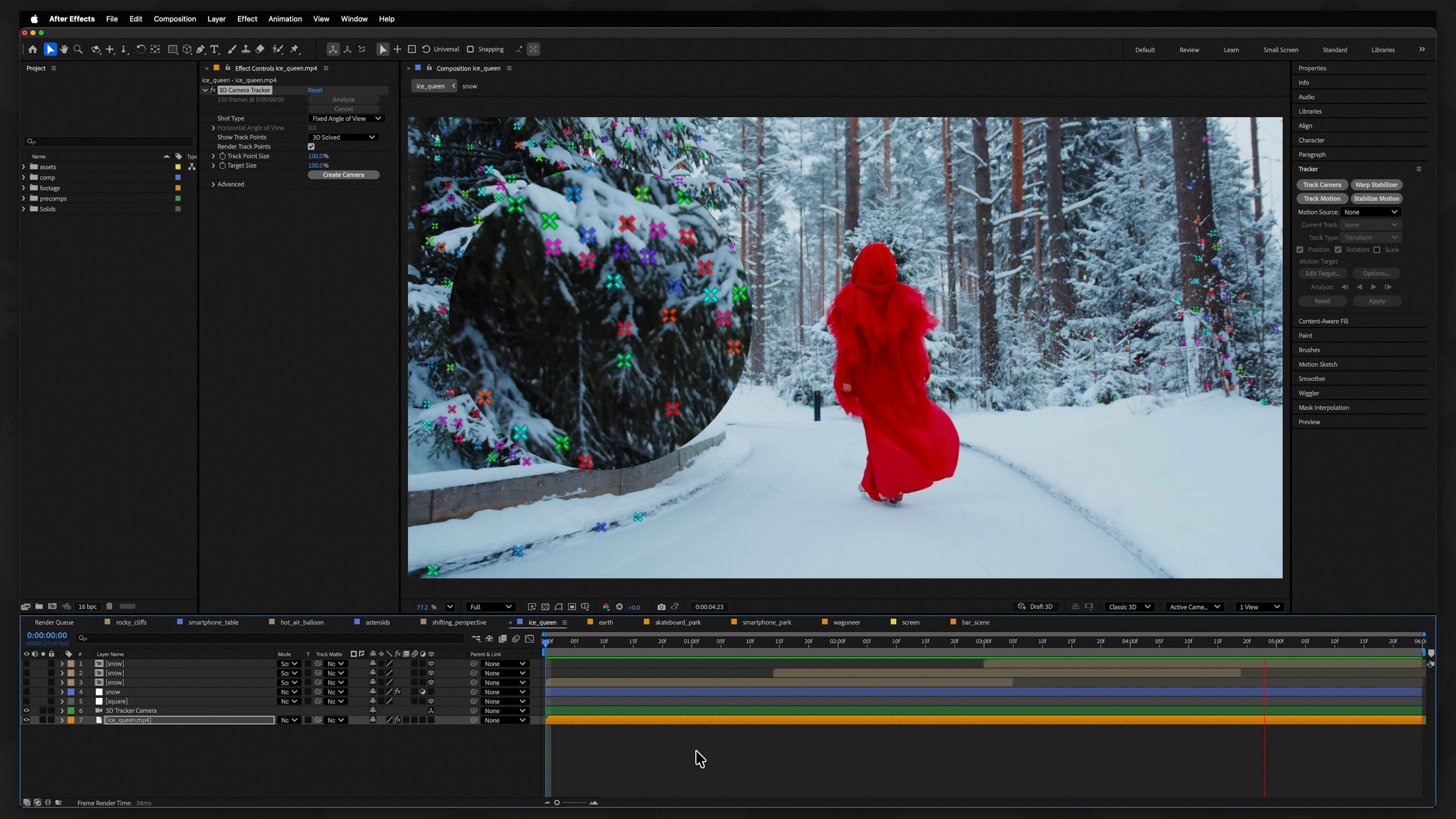
This lesson introduces tracking in After Effects, showing students how to extract motion, rotation, scale, and camera movement from live-action footage so graphics feel naturally integrated into the scene. Students will practice using Track Motion, Boris FX Mocha, Corner Pin, the Smoother panel, and Camera Tracking to attach text, screens, effects, and 3D-style elements to moving footage.
Lesson 10: Effects & Tools
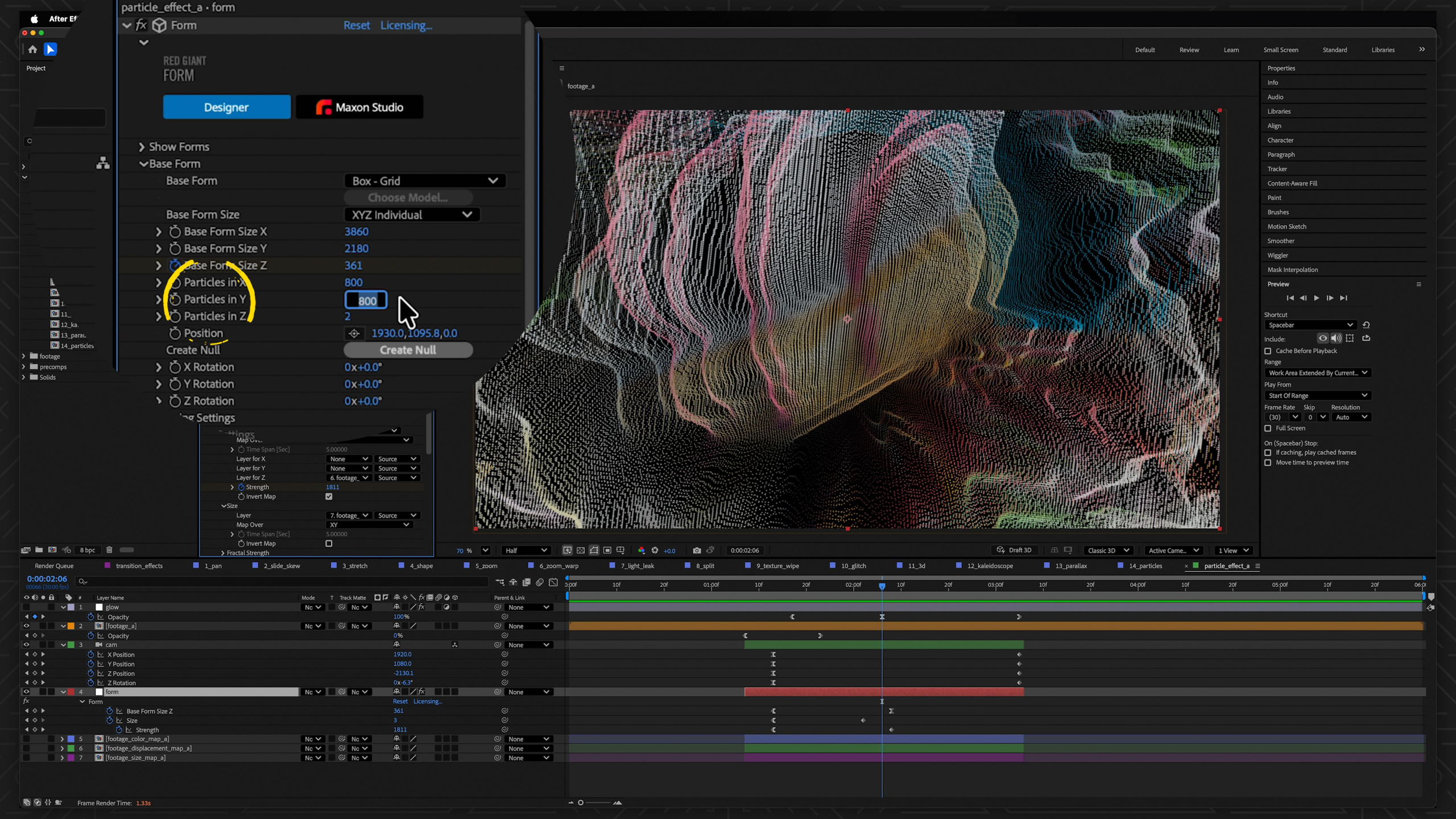
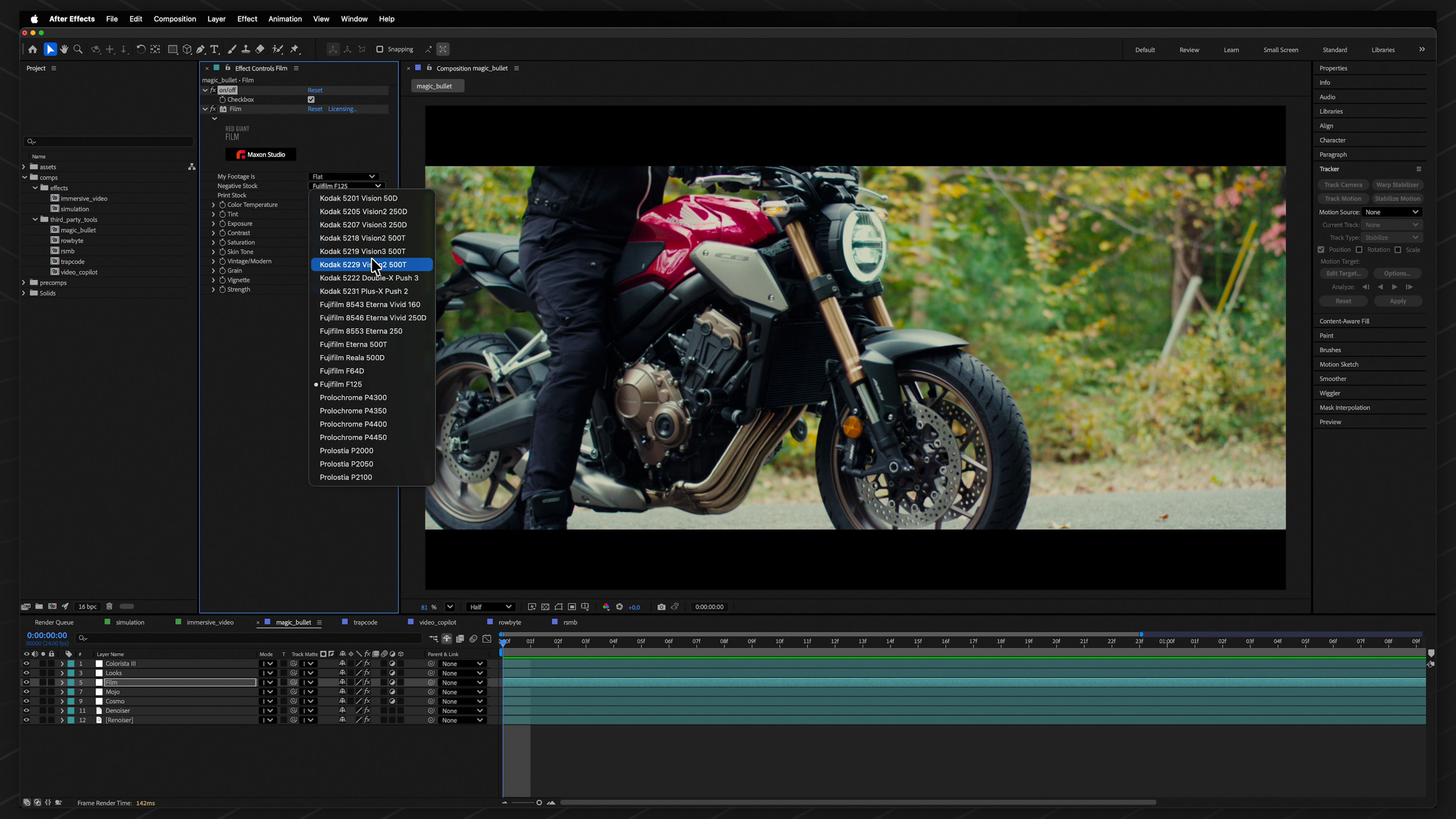
This lesson gives students a broader look at advanced After Effects effects and popular third-party tools used throughout the motion graphics industry, including simulation effects, VR tools, Magic Bullet, Trapcode, Video Copilot, Plexus, and RSMB. While there is no formal assignment, students are encouraged to explore the project file as a reference library and start identifying which tools may become useful in their own creative workflow.
Lesson 5: Masking
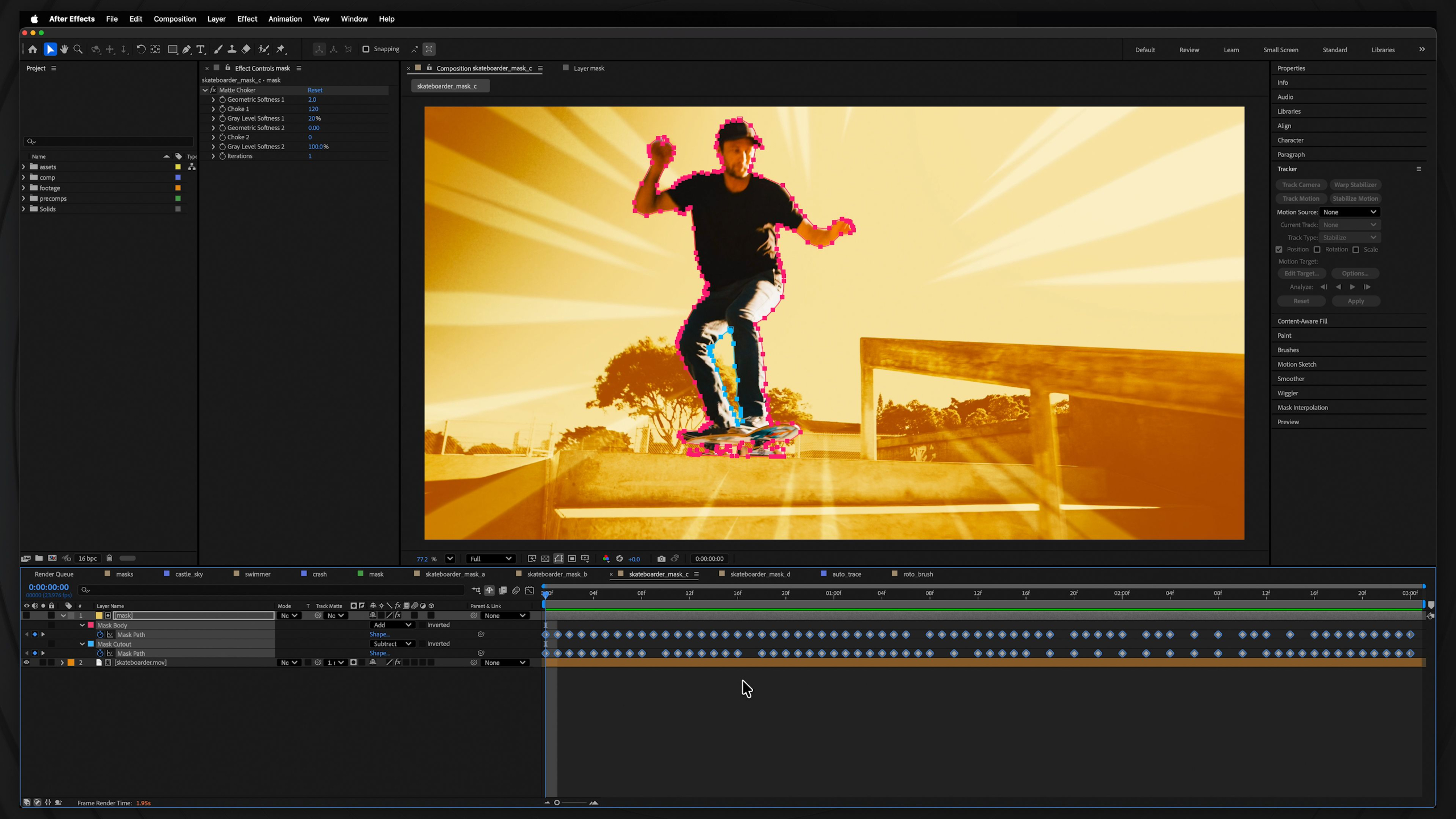
This lesson introduces masking in After Effects as one of the most essential motion graphics techniques for hiding, revealing, compositing, and placing graphics or effects into live-action footage. Students will practice practical masking, rotoscoping, Auto-Trace, Roto Brush, Refine Edge, and tracking-based workflows to solve real creative challenges in post-production.
Portfolio Project: Tourism Campaign
This portfolio lesson challenges students to create a 15–20 second tourism campaign ad using real footage and images, while applying the key After Effects skills from the module like color control, tracking, masking, stabilization, and transitions. Students can also push the project further by adding a collage or parallax shot, giving them a polished portfolio piece that shows they can combine multiple techniques into a professional-looking motion graphics project.
Lesson 6: Stabilization
This lesson introduces stabilization in After Effects, showing students how to smooth shaky footage, remove unwanted camera movement, repair motion blur or rolling shutter issues, and prepare footage for cleaner motion graphics work. Students will practice using Stabilize Motion, Warp Stabilizer, Camera-Shake Deblur, Rolling Shutter Repair, and even add camera shake back in when it helps create more energy.
Portfolio Project: Motion GFX Kits
This lesson introduces 3 different After Effects kits:
The Award Ceremony Kit is a customizable After Effects template designed to help students quickly create elegant event graphics.
The Ultimate Maps Kit is a powerful template system that helps students quickly create animated maps with countries, states, cities, routes, markers and more.
The Whiteboard Starter Kit helps students create polished whiteboard-style animations.
Lesson 1: After Effects Overview
This lesson introduces the After Effects for Motion Graphics module, where students begin building the essential skills used in real client and studio work, including text animation, greenscreen keying, stabilization, tracking, and integrating graphics with video. Students will also set up a free Pexels account so they can access unique footage for assignments and start creating portfolio-ready motion graphics projects.
Lesson 2: Color Control
This lesson introduces color control in After Effects, covering the difference between color correction and color grading while teaching students how to use Lumetri Color to adjust exposure, white balance, contrast, LUTs, and stylized looks. Students will experiment with provided footage to practice building a clean color-correction workflow and create more polished, professional-looking motion graphics projects.
Lesson 3: Chroma Key
This lesson introduces chroma keying in After Effects, showing students how to remove green or blue screen backgrounds and composite footage, graphics, and environments together using tools like Keylight. Students will practice creating clean keys in common real-world scenarios, including low-resolution footage, fine hair, motion blur, shallow focus, inconsistent backgrounds, and screen replacements.
Lesson 4: Tracking
This lesson introduces tracking in After Effects, showing students how to extract motion, rotation, scale, and camera movement from live-action footage so graphics feel naturally integrated into the scene. Students will practice using Track Motion, Boris FX Mocha, Corner Pin, the Smoother panel, and Camera Tracking to attach text, screens, effects, and 3D-style elements to moving footage.
Lesson 5: Masking
This lesson introduces masking in After Effects as one of the most essential motion graphics techniques for hiding, revealing, compositing, and placing graphics or effects into live-action footage. Students will practice practical masking, rotoscoping, Auto-Trace, Roto Brush, Refine Edge, and tracking-based workflows to solve real creative challenges in post-production.
Lesson 6: Stabilization
This lesson introduces stabilization in After Effects, showing students how to smooth shaky footage, remove unwanted camera movement, repair motion blur or rolling shutter issues, and prepare footage for cleaner motion graphics work. Students will practice using Stabilize Motion, Warp Stabilizer, Camera-Shake Deblur, Rolling Shutter Repair, and even add camera shake back in when it helps create more energy.
Lesson 7: Transitions
This lesson introduces transitions in After Effects, showing students how to move creatively from one shot or scene to another using wipes, pans, zooms, shapes, glitches, parallax, 3D moves, textures, particles, and more. Students will study a wide range of transition techniques and then create five original transition sequences using different styles.
Lesson 8: Collages
This lesson introduces collages in motion graphics, showing students how to combine images, videos, tiles, camera movement, 3D space, scripts, and particle systems to tell richer visual stories in a short amount of time. Students will practice building and animating their own collage using custom visuals, tile systems, camera moves, and motion techniques inside After Effects.
Lesson 9: Parallax
This lesson teaches students how to bring still images to life using parallax, creating the illusion of depth by separating artwork into layers and moving closer objects faster than those farther away. Students will practice both the Null Method and Camera Method, then build their own layered parallax animation for their portfolio.
Lesson 10: Effects & Tools
This lesson gives students a broader look at advanced After Effects effects and popular third-party tools used throughout the motion graphics industry, including simulation effects, VR tools, Magic Bullet, Trapcode, Video Copilot, Plexus, and RSMB. While there is no formal assignment, students are encouraged to explore the project file as a reference library and start identifying which tools may become useful in their own creative workflow.
Portfolio Project: Tourism Campaign
This portfolio lesson challenges students to create a 15–20 second tourism campaign ad using real footage and images, while applying the key After Effects skills from the module like color control, tracking, masking, stabilization, and transitions. Students can also push the project further by adding a collage or parallax shot, giving them a polished portfolio piece that shows they can combine multiple techniques into a professional-looking motion graphics project.
Portfolio Project: Motion GFX Kits
This lesson introduces 3 different After Effects kits:
The Award Ceremony Kit is a customizable After Effects template designed to help students quickly create elegant event graphics.
The Ultimate Maps Kit is a powerful template system that helps students quickly create animated maps with countries, states, cities, routes, markers and more.
The Whiteboard Starter Kit helps students create polished whiteboard-style animations.