Blender Foundations
Estimated completion time: 1-2 weeks
Lessons are in video format with downloadable project files.
Blender Foundations
Estimated completion time:
1-2 weeks
Lessons are in video format with downloadable project files.
This free course provides a brief intro into the free open-source 3D software Blender. We focus not only on animation, but introduce other parts of the 3D production pipeline.
By the end, students will not simply be able to use the software, but they'll have a basic understanding of some of it's capabilities for use in a variety of different industries.
*This is a preview of our Intro To Blender course which can be purchased in full here.
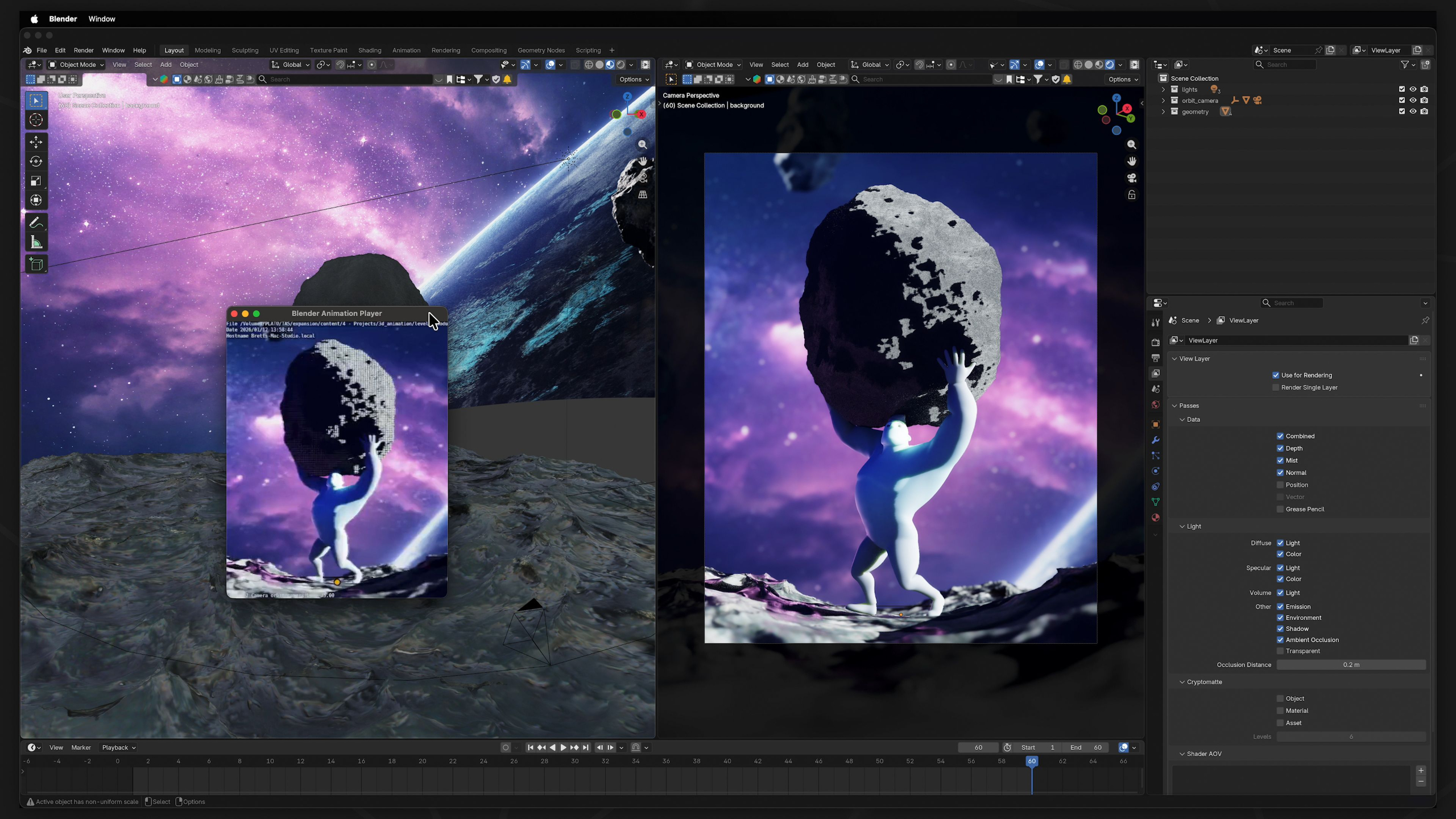
Lesson 1: Blender Intro
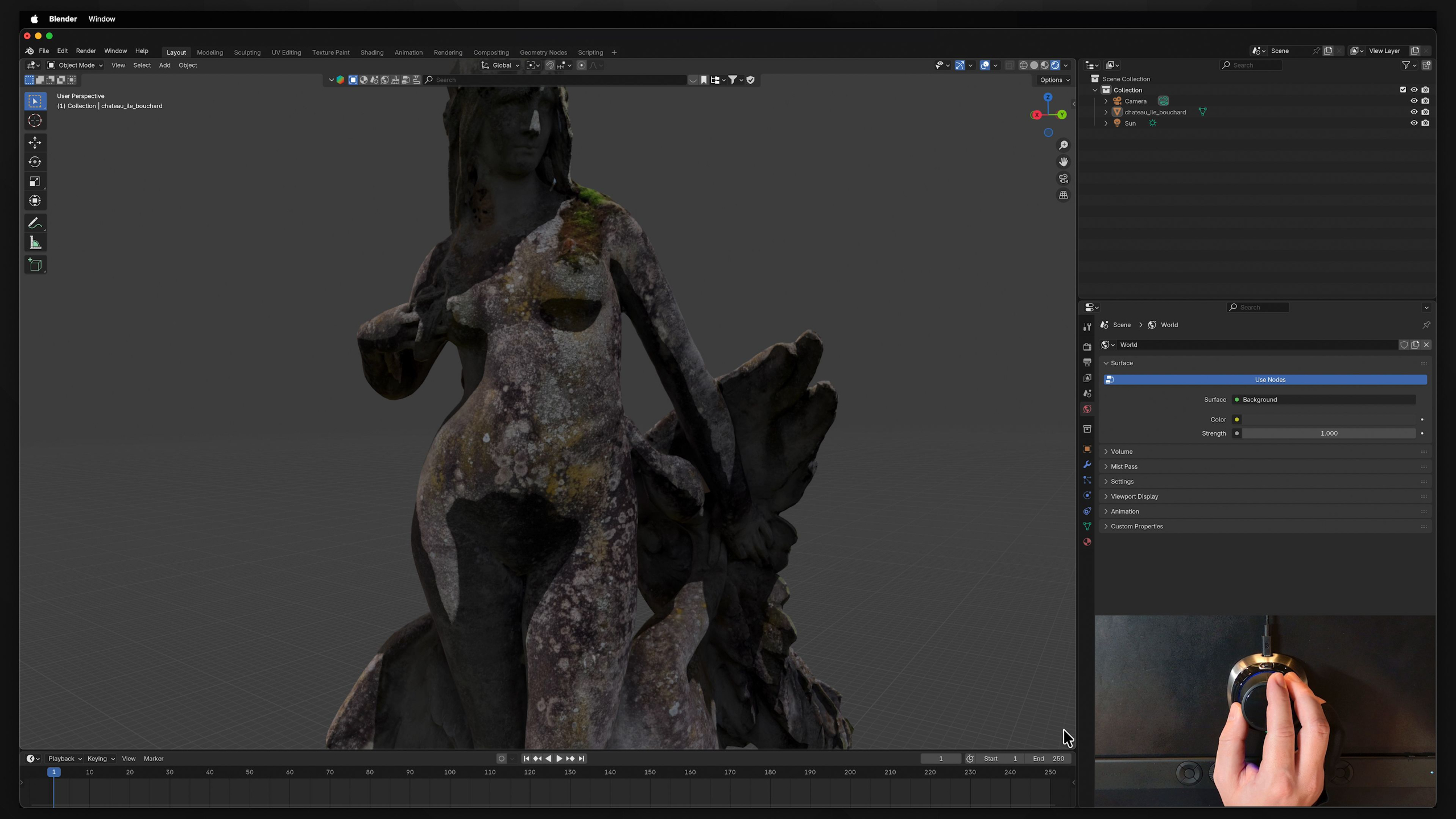
This lesson introduces Blender as the main 3D software used throughout the curriculum and explains why it’s such a powerful, accessible tool for animation students. Students will learn how Blender fits into the larger 3D pipeline, why its free and open-source structure matters, and how to download and install it before moving forward.
Lesson 11: Modeling: Modifiers
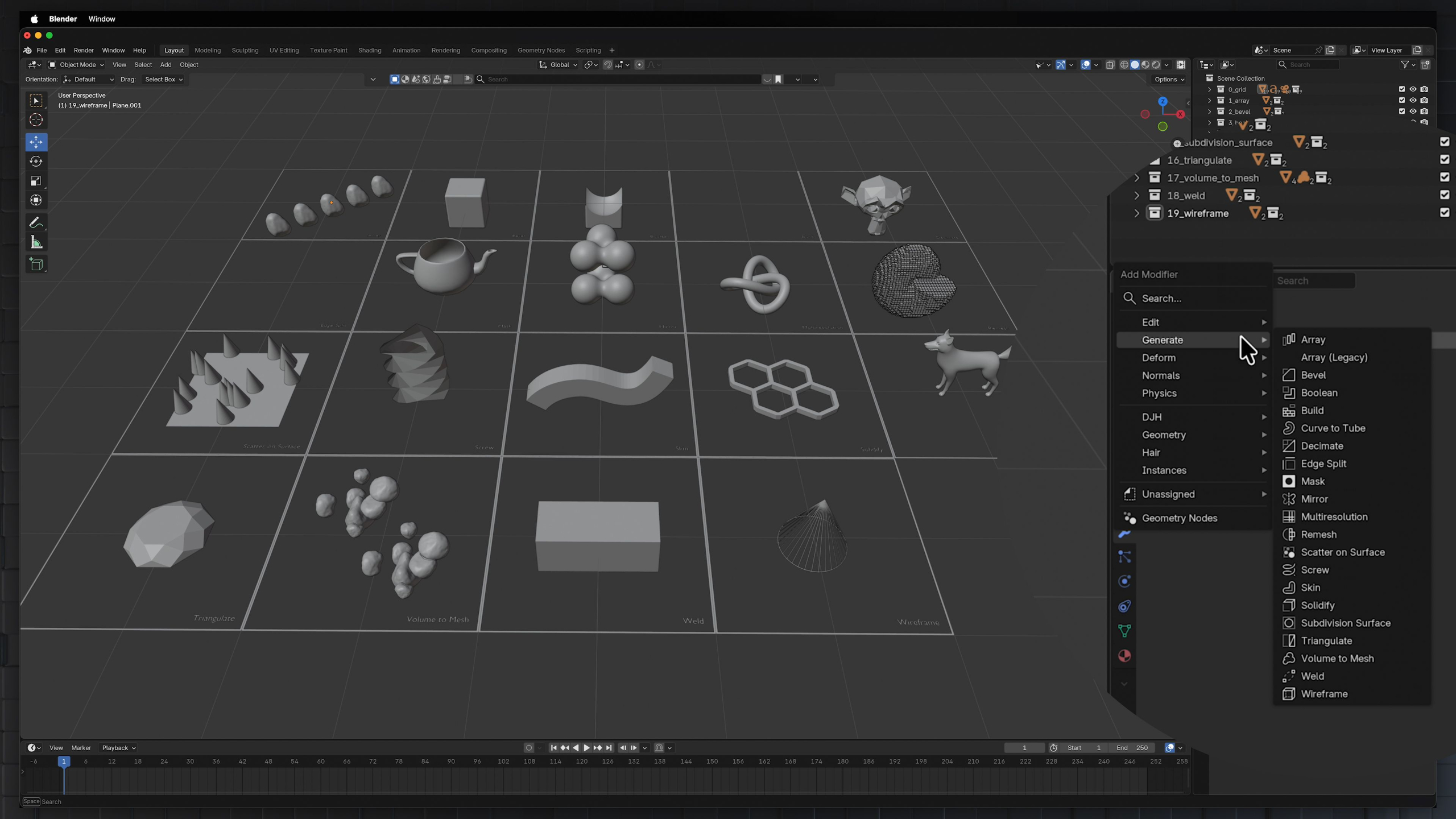
In this lesson, students learn how Blender modifiers work as flexible, non-destructive tools for editing, generating, deforming, and refining objects. They’ll explore a wide range of modifiers through hands-on examples so they can better understand how to create complex effects, clean up geometry, and build more capable animation-ready scenes.
Lesson 2: Basics: Interface Overview
This lesson gives students a guided tour of Blender’s interface, key panels, hotkeys, and workspace setup so the software feels less overwhelming from the start. It also walks through recommended keymap and tablet/mouse settings to make navigating, transforming objects, and following future lessons much easier.
Lesson 12: Modeling: Useful Shapes
In this lesson, students learn how to create useful shapes and quick geometry in Blender, including sweep curves, custom curves, vector-based objects, circular arrays, path objects, and randomized object layouts. They’ll practice building flexible scene elements and simple props so they can become more self-sufficient when creating or modifying objects for animation projects.
Lesson 3: Basics: Viewport Navigation
In this lesson, students learn how to confidently move around Blender’s 3D Viewport using tools like orbit, pan, zoom, camera view, orthographic views, Quad View, the numpad, and the 3D cursor. They’ll practice navigating both simple objects and a house model so working in 3D space starts to feel more natural.
Lesson 13: Modeling: Sculpting Tools
In this lesson, students get introduced to Blender’s Sculpt Mode and learn how different brush tools can push, pull, smooth, paint, mask, and deform geometry. They’ll experiment with sculpting brushes and Dyntopo so they can better understand how mesh can be shaped more organically, even if modeling is not their main focus as animators.
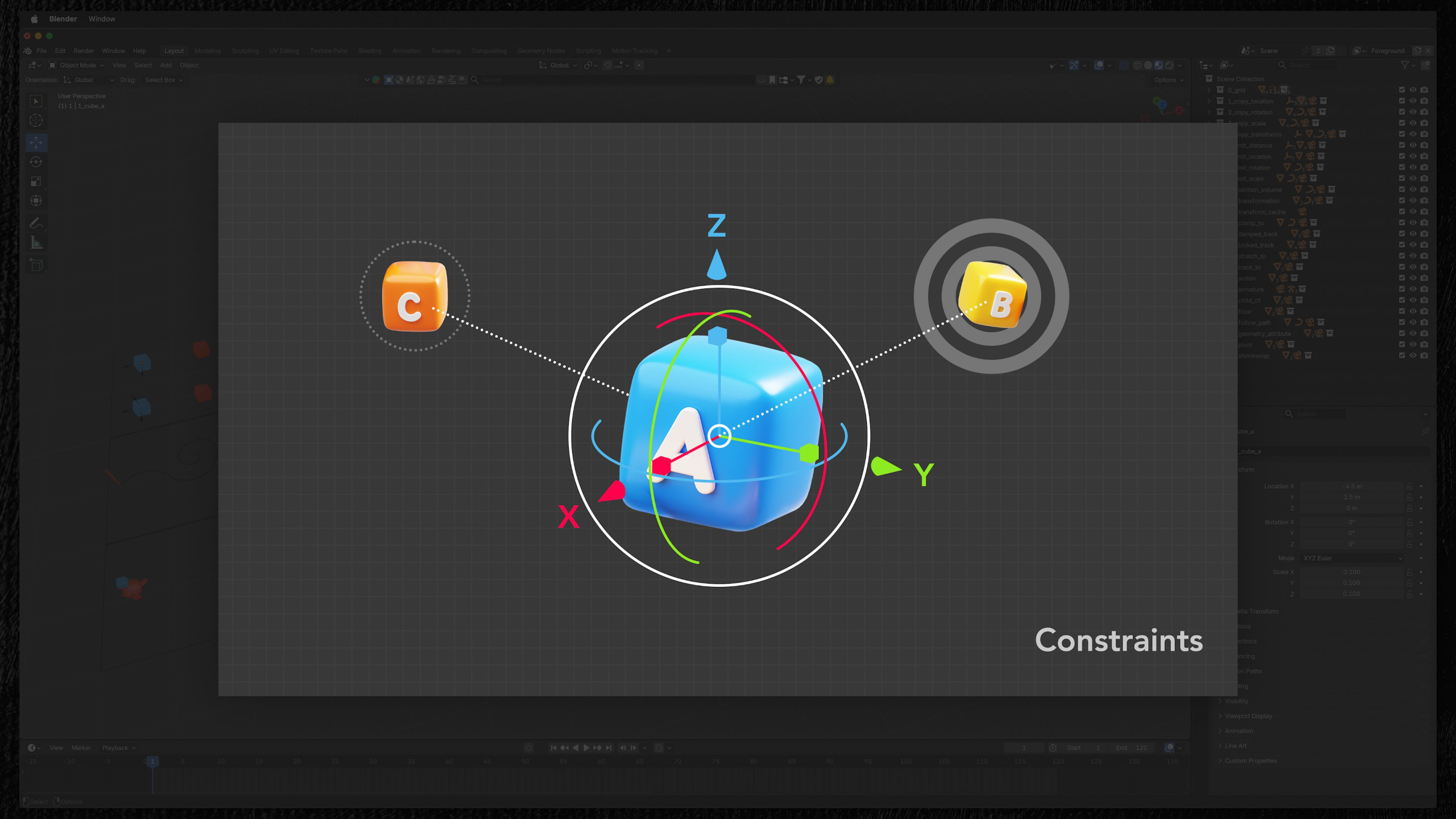
Lesson 4: Basics: Selecting & Transforming
In this lesson, students learn how to select objects in Blender and transform them using move, rotate, scale, snapping, pivot points, transform orientations, and the 3D cursor. They’ll practice manipulating objects in a table scene so they can get comfortable with the core tools used to position and organize anything in 3D space.
Lesson 14: Shaders & Textures: Shader Editor
In this lesson, students are introduced to Blender’s Shader Editor and learn how materials, nodes, viewport shading modes, image textures, world shaders, and render engines work together to define the look of 3D objects. They’ll experiment with nodes like Principled BSDF, image textures, color controls, bump, displacement, and other shader types so they can start building their own materials with more confidence.
Lesson 5: Basics: Object Manipulation
In this lesson, students learn how to manipulate objects in Blender by editing vertices, edges, faces, curves, surfaces, metaballs, and text. They’ll explore key tools like Edit Mode, proportional editing, selection menus, deleting, extruding, merging, and curve controls so they can start reshaping objects with more confidence.
Lesson 15: Shaders & Textures: Texture Tools
In this lesson, students learn how to control and apply image textures, normal maps, bump maps, and procedural textures inside Blender. They’ll also explore BlenderKit as a resource for finding ready-made materials, helping them create better-looking scenes faster without needing to build every shader from scratch.
Lesson 6: Basics: Collections
In this lesson, students learn how to use Collections in Blender to organize objects, manage visibility, control render settings, and keep complex scenes easier to work with. They’ll explore the Outliner, collection options, restriction toggles, and filtering tools so their projects stay clean and manageable as they grow.
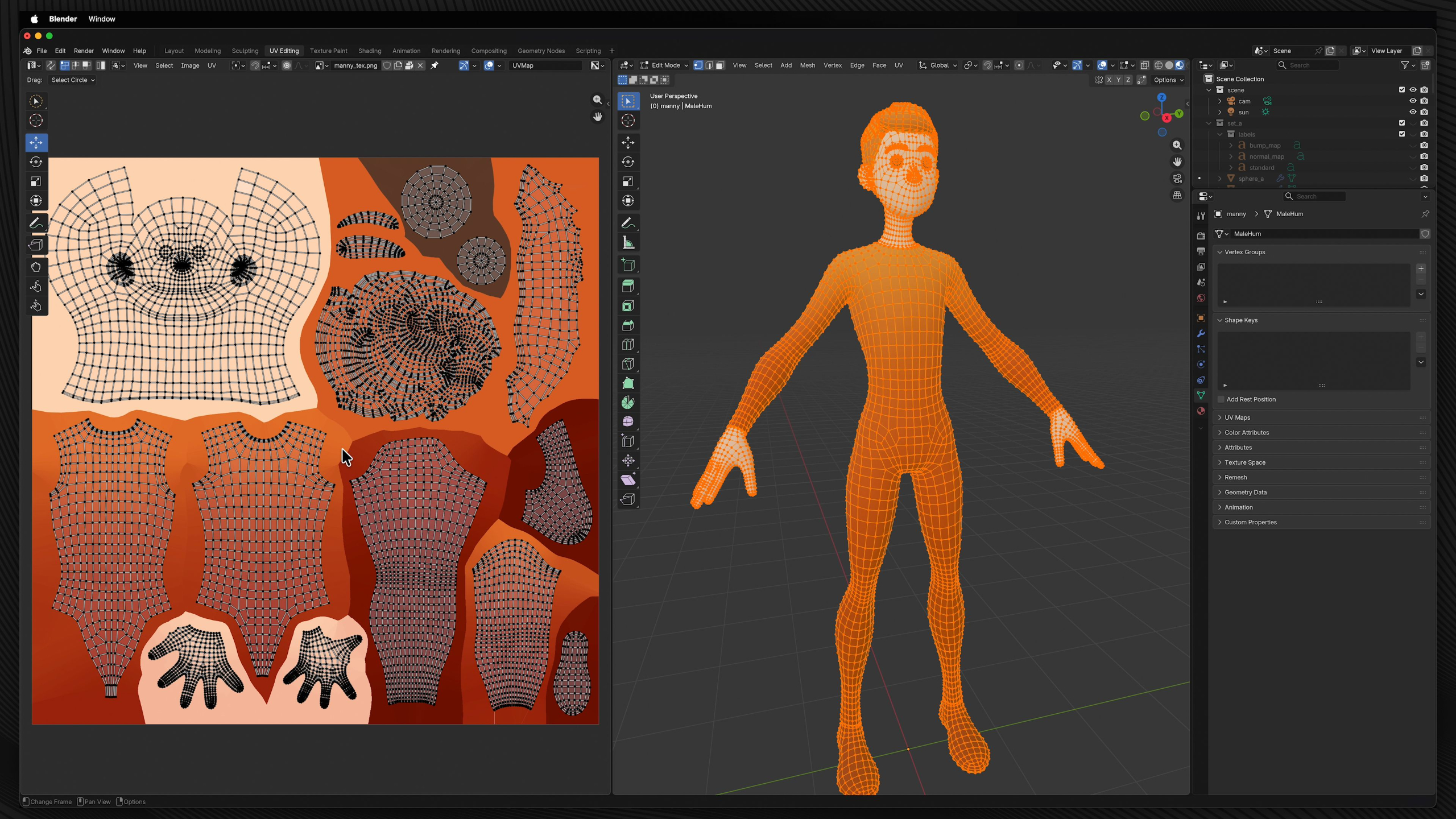
Lesson 16: Shaders & Textures: Unwrapping
In this lesson, students learn how UV unwrapping works in Blender and how 2D texture maps connect to 3D geometry. They’ll practice using seams, projection methods, UV editing tools, and texture coordinates so they can place, adjust, and control textures more accurately on their models.
Lesson 7: Basics: Working w/ Workspaces
In this lesson, students get a guided tour of Blender’s different workspaces and how each layout supports a specific part of the 3D production pipeline, from modeling and sculpting to shading, animation, rendering, and compositing. They’ll learn which workspaces matter most for animation while getting a basic understanding of how the rest of Blender’s tools fit into the bigger picture.
Lesson 17: Shaders & Textures: Texture Painting
In this lesson, students learn how to use Blender’s Texture Paint workflow to paint directly onto 3D models and their UV maps. They’ll practice setting up paintable textures, using brushes, masks, local view, and texture-based brush settings so they can add more custom detail to organic models.
Lesson 8: Modeling: Toolbox
In this lesson, students are introduced to Blender’s core modeling tools and learn how to use features like extrude, inset, bevel, loop cut, knife, smooth, and more to shape and refine geometry. They’ll experiment with these tools on different objects and set up a TurboSquid account so they can begin working with real 3D models in future lessons.
Lesson 18: Lighting: Light & Shadow
In this lesson, students learn how Blender’s different light types work and how each one affects the mood, visibility, and shadows in a scene. They’ll experiment with point, spot, area, and sun lights while adjusting real-time shadow settings to better understand how lighting can support storytelling and visual clarity.
Lesson 9: Modeling: Advanced Tools
In this lesson, students go beyond Blender’s basic modeling toolbox and explore more advanced tools found in the Vertex, Edge, and Face menus. They’ll experiment with techniques like beveling, bridging, subdividing, filling, triangulating, booleans, smoothing, and creasing so they can better understand different ways to modify and refine 3D models.
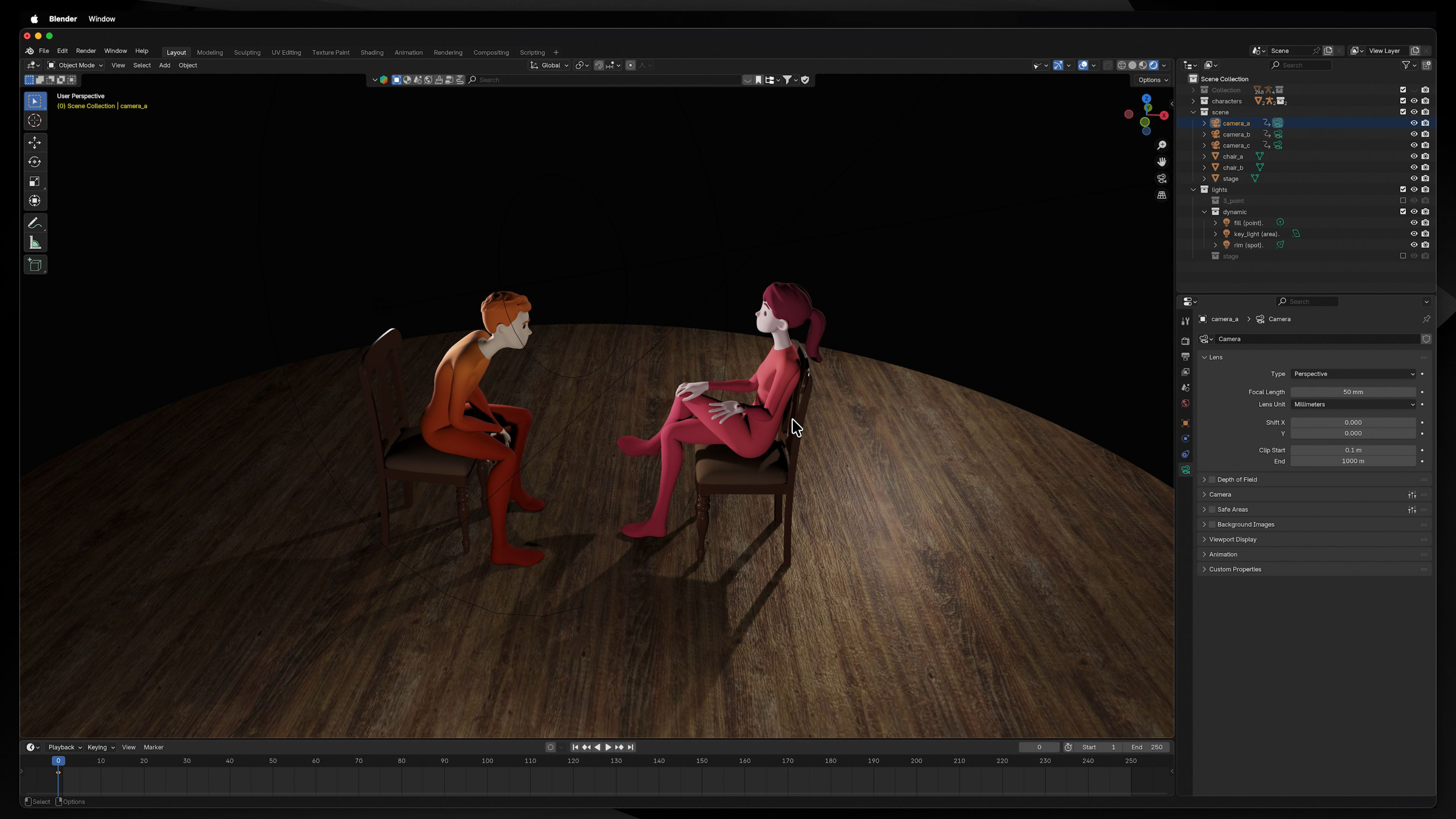
Lesson 19: Lighting: Lighting Setups
In this lesson, students learn how to create practical lighting setups in Blender, starting with classic three-point lighting and expanding into more dramatic scene-based approaches. They’ll practice lighting single characters, multiple characters, and full environments so they can use light and shadow to guide attention, set mood, and support storytelling.
Lesson 10: Modeling: Construct & Deconstruct
In this lesson, students apply Blender’s modeling tools to a more complex excavator model, practicing how to construct, adjust, and deconstruct geometry using techniques like deleting, ripping, bridging, beveling, booleans, and proportional editing. They’ll also learn the difference between hard-surface and organic modeling while building a better understanding of topology and how clean geometry affects a 3D model.
Lesson 1: Blender Intro
This lesson introduces Blender as the main 3D software used throughout the curriculum and explains why it’s such a powerful, accessible tool for animation students. Students will learn how Blender fits into the larger 3D pipeline, why its free and open-source structure matters, and how to download and install it before moving forward.
Lesson 2: Basics: Interface Overview
This lesson gives students a guided tour of Blender’s interface, key panels, hotkeys, and workspace setup so the software feels less overwhelming from the start. It also walks through recommended keymap and tablet/mouse settings to make navigating, transforming objects, and following future lessons much easier.
Lesson 3: Basics: Viewport Navigation
In this lesson, students learn how to confidently move around Blender’s 3D Viewport using tools like orbit, pan, zoom, camera view, orthographic views, Quad View, the numpad, and the 3D cursor. They’ll practice navigating both simple objects and a house model so working in 3D space starts to feel more natural.
Lesson 4: Basics: Selecting & Transforming
In this lesson, students learn how to select objects in Blender and transform them using move, rotate, scale, snapping, pivot points, transform orientations, and the 3D cursor. They’ll practice manipulating objects in a table scene so they can get comfortable with the core tools used to position and organize anything in 3D space.
Lesson 5: Basics: Object Manipulation
In this lesson, students learn how to manipulate objects in Blender by editing vertices, edges, faces, curves, surfaces, metaballs, and text. They’ll explore key tools like Edit Mode, proportional editing, selection menus, deleting, extruding, merging, and curve controls so they can start reshaping objects with more confidence.
Lesson 6: Basics: Collections
In this lesson, students learn how to use Collections in Blender to organize objects, manage visibility, control render settings, and keep complex scenes easier to work with. They’ll explore the Outliner, collection options, restriction toggles, and filtering tools so their projects stay clean and manageable as they grow.
Lesson 7: Basics: Working w/ Workspaces
In this lesson, students get a guided tour of Blender’s different workspaces and how each layout supports a specific part of the 3D production pipeline, from modeling and sculpting to shading, animation, rendering, and compositing. They’ll learn which workspaces matter most for animation while getting a basic understanding of how the rest of Blender’s tools fit into the bigger picture.
Lesson 8: Modeling: Toolbox
In this lesson, students are introduced to Blender’s core modeling tools and learn how to use features like extrude, inset, bevel, loop cut, knife, smooth, and more to shape and refine geometry. They’ll experiment with these tools on different objects and set up a TurboSquid account so they can begin working with real 3D models in future lessons.
Lesson 9: Modeling: Advanced Tools
In this lesson, students go beyond Blender’s basic modeling toolbox and explore more advanced tools found in the Vertex, Edge, and Face menus. They’ll experiment with techniques like beveling, bridging, subdividing, filling, triangulating, booleans, smoothing, and creasing so they can better understand different ways to modify and refine 3D models.
Lesson 10: Modeling: Construct & Deconstruct
In this lesson, students apply Blender’s modeling tools to a more complex excavator model, practicing how to construct, adjust, and deconstruct geometry using techniques like deleting, ripping, bridging, beveling, booleans, and proportional editing. They’ll also learn the difference between hard-surface and organic modeling while building a better understanding of topology and how clean geometry affects a 3D model.
Lesson 11: Modeling: Modifiers
In this lesson, students learn how Blender modifiers work as flexible, non-destructive tools for editing, generating, deforming, and refining objects. They’ll explore a wide range of modifiers through hands-on examples so they can better understand how to create complex effects, clean up geometry, and build more capable animation-ready scenes.
Lesson 12: Modeling: Useful Shapes
In this lesson, students learn how to create useful shapes and quick geometry in Blender, including sweep curves, custom curves, vector-based objects, circular arrays, path objects, and randomized object layouts. They’ll practice building flexible scene elements and simple props so they can become more self-sufficient when creating or modifying objects for animation projects.
Lesson 13: Modeling: Sculpting Tools
In this lesson, students get introduced to Blender’s Sculpt Mode and learn how different brush tools can push, pull, smooth, paint, mask, and deform geometry. They’ll experiment with sculpting brushes and Dyntopo so they can better understand how mesh can be shaped more organically, even if modeling is not their main focus as animators.
Lesson 14: Shaders & Textures: Shader Editor
In this lesson, students are introduced to Blender’s Shader Editor and learn how materials, nodes, viewport shading modes, image textures, world shaders, and render engines work together to define the look of 3D objects. They’ll experiment with nodes like Principled BSDF, image textures, color controls, bump, displacement, and other shader types so they can start building their own materials with more confidence.
Lesson 15: Shaders & Textures: Texture Tools
In this lesson, students learn how to control and apply image textures, normal maps, bump maps, and procedural textures inside Blender. They’ll also explore BlenderKit as a resource for finding ready-made materials, helping them create better-looking scenes faster without needing to build every shader from scratch.
Lesson 16: Shaders & Textures: Unwrapping
In this lesson, students learn how UV unwrapping works in Blender and how 2D texture maps connect to 3D geometry. They’ll practice using seams, projection methods, UV editing tools, and texture coordinates so they can place, adjust, and control textures more accurately on their models.
Lesson 17: Shaders & Textures: Texture Painting
In this lesson, students learn how to use Blender’s Texture Paint workflow to paint directly onto 3D models and their UV maps. They’ll practice setting up paintable textures, using brushes, masks, local view, and texture-based brush settings so they can add more custom detail to organic models.
Lesson 18: Lighting: Light & Shadow
In this lesson, students learn how Blender’s different light types work and how each one affects the mood, visibility, and shadows in a scene. They’ll experiment with point, spot, area, and sun lights while adjusting real-time shadow settings to better understand how lighting can support storytelling and visual clarity.
Lesson 19: Lighting: Lighting Setups
In this lesson, students learn how to create practical lighting setups in Blender, starting with classic three-point lighting and expanding into more dramatic scene-based approaches. They’ll practice lighting single characters, multiple characters, and full environments so they can use light and shadow to guide attention, set mood, and support storytelling.