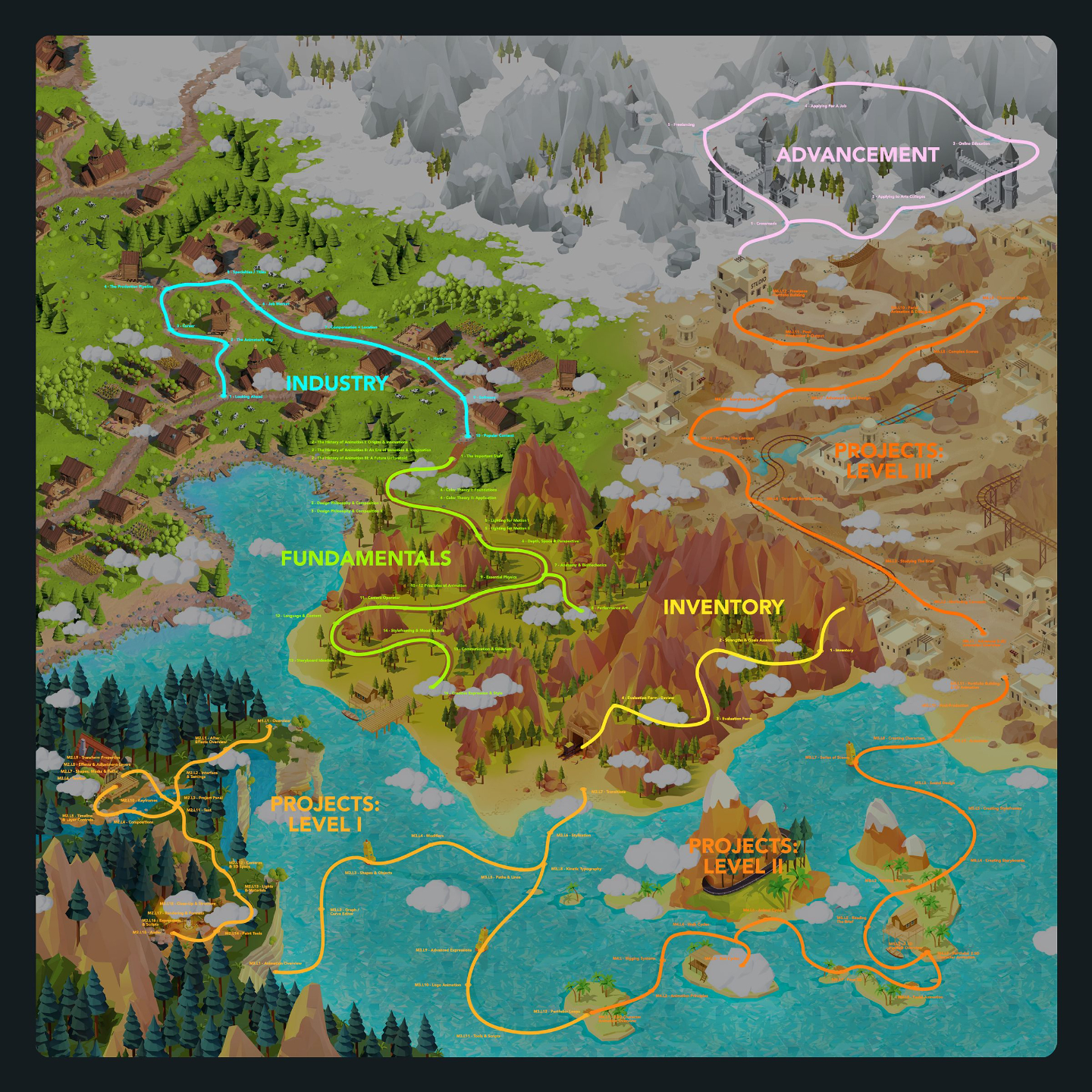
Intro To After Effects
Estimated completion time: 6-8 weeks
Lessons are in video format with downloadable project files.
Intro To After Effects
Estimated completion time:
6-8 weeks
Lessons are in video format with downloadable project files.
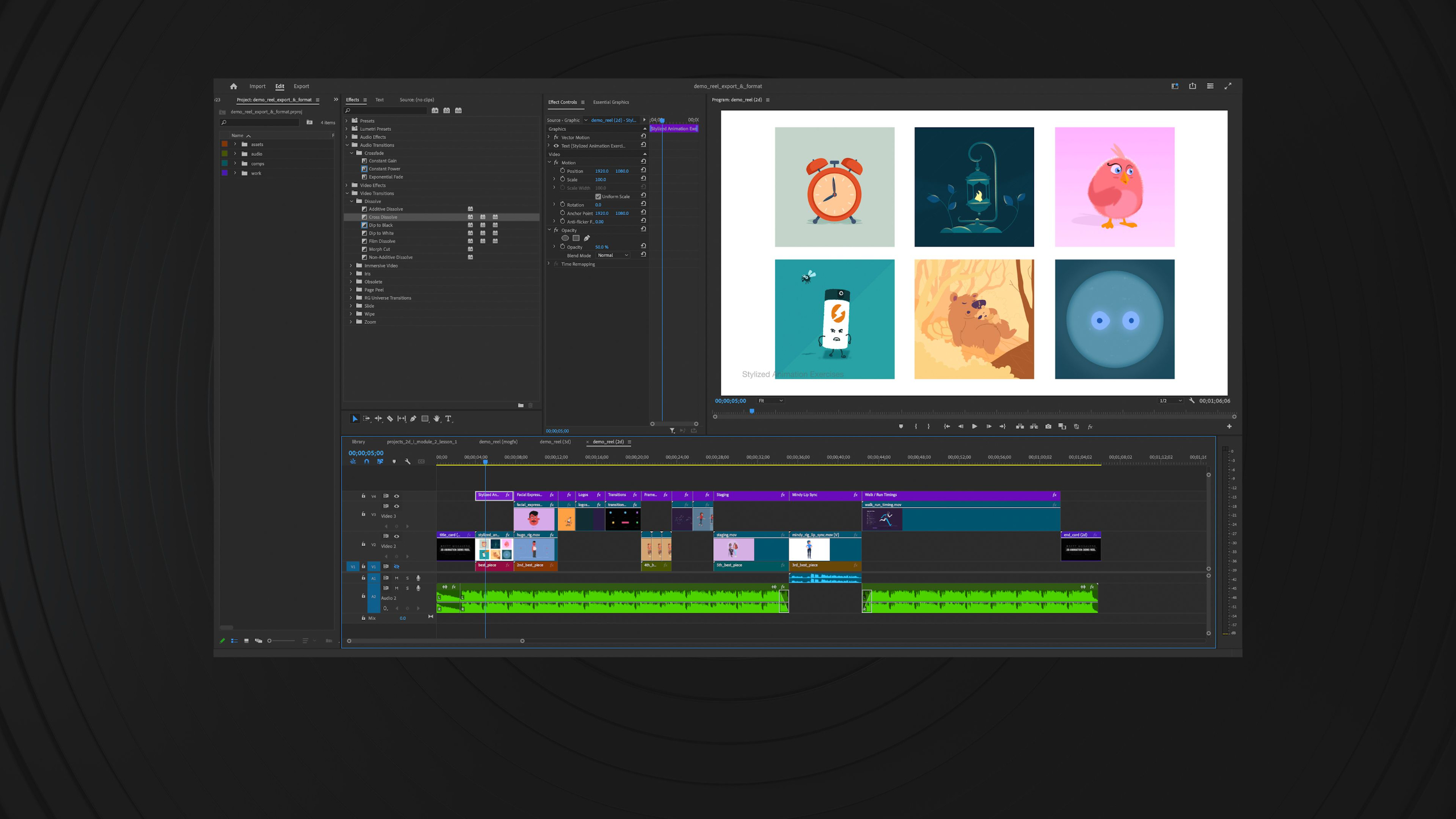
This module introduces Adobe After Effects as a powerful compositing and animation tool across film, television, gaming, marketing, and social media.
We explore how to combine visual elements, effects, and animation into cohesive scenes while emphasizing accessibility and seamless integration with other Adobe software.
We focuses on teaching students a practical 2.5D Animation Pipeline that blends storytelling, character animation, and motion graphics. Students are encouraged to develop both creative and technical skills while learning industry workflows, hardware considerations, and the importance of repetition and experimentation in mastering animation.
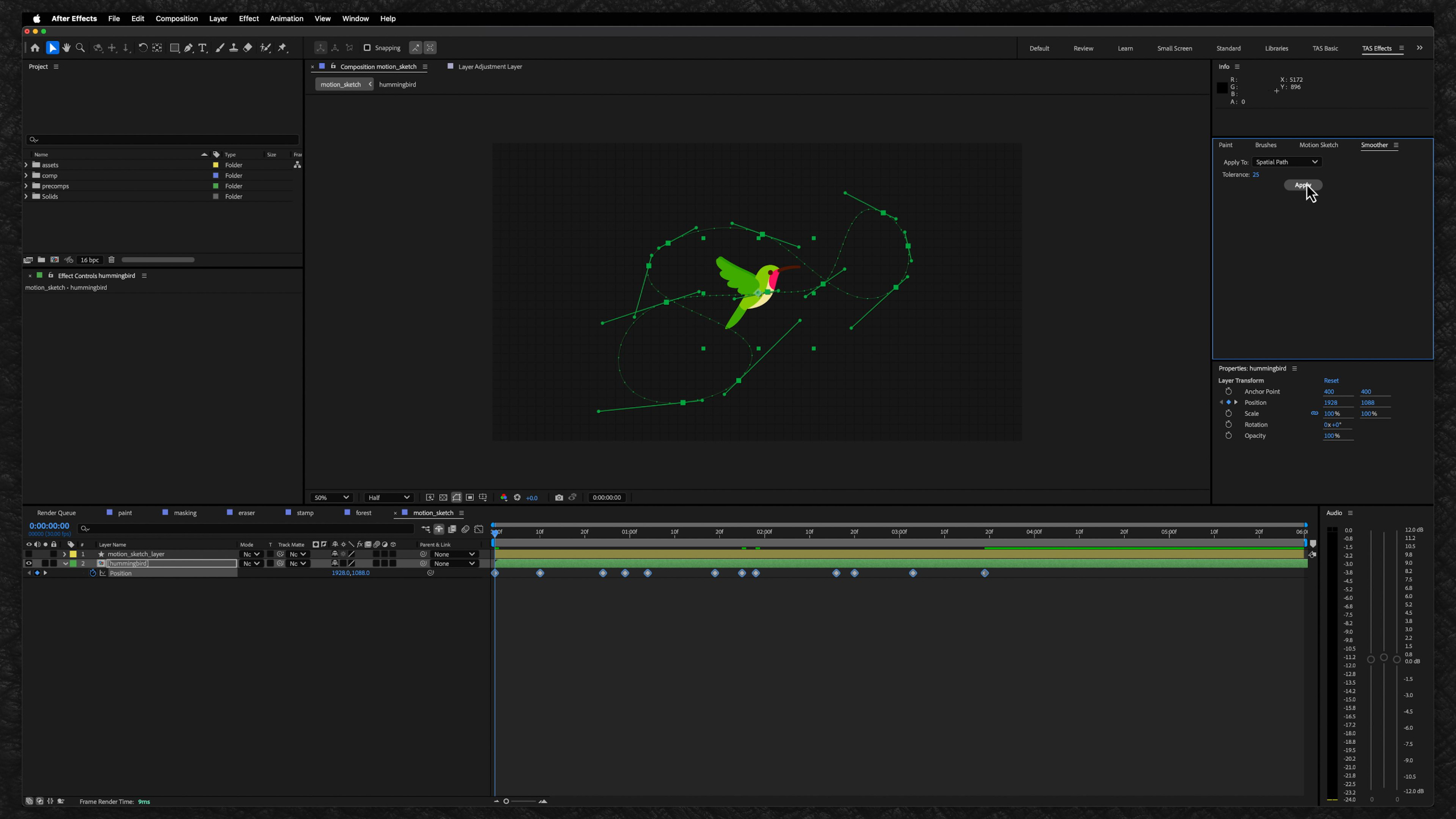
Lesson 1: After Effects Overview
This lesson goes over what you will be learning in the Intro to After Effects module and introduces Adobe After Effects as a powerful compositing and animation tool used to combine visuals, create effects, and build 2.5D animated projects. It also explains how students will use After Effects to animate characters, move graphics through 3D space, format projects for different platforms, and build a practical animation pipeline through repetition and experimentation.
Lesson 10: Keyframes
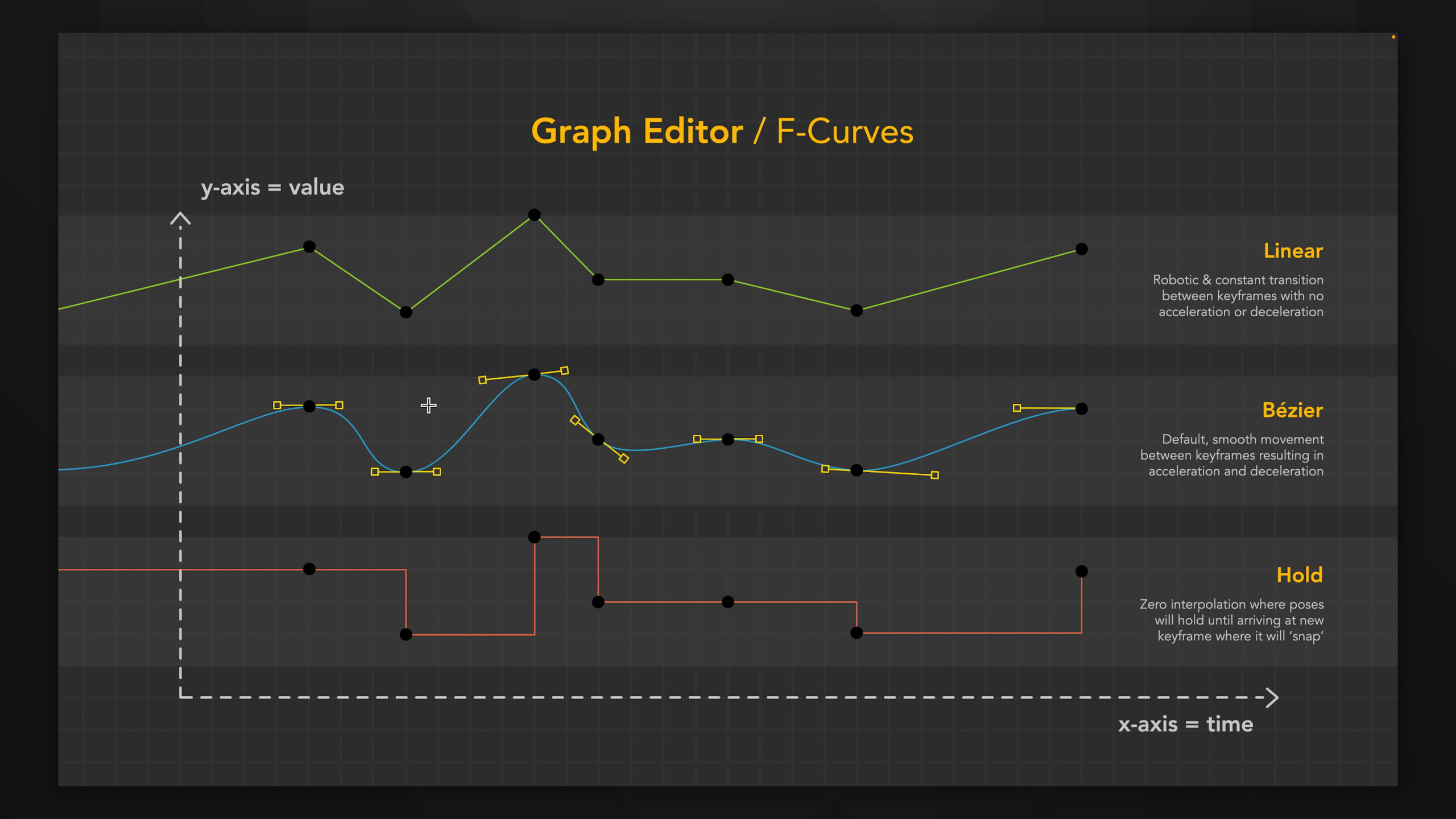
This lesson introduces keyframes as the main way to create movement and change over time in After Effects. Students learn how different keyframe types—linear, bezier, easy ease, and hold—affect motion, timing, and interpolation so their animations feel more polished and believable.
Lesson 2: Interface & Settings
This lesson walks students through the After Effects interface, showing how the main panels, workspaces, menus, and preferences are organized. It also helps beginners get comfortable with important settings like auto-save, memory, cache, previews, labels, and performance so they can work faster and avoid common workflow issues later.
Lesson 11: Text
This lesson walks students through the fundamentals of working with text in After Effects, including creating text layers, choosing fonts, adjusting color, spacing, stroke, alignment, and paragraph settings. It also introduces a few practical text workflow tips, like installing fonts, converting Photoshop text into editable After Effects text, and using the Character and Paragraph panels more confidently.
Lesson 3: Project Panel
This lesson shows students how to use the Project Panel as the main place for importing, organizing, and managing media in After Effects. It also covers key project settings, file types, footage interpretation, proxies, and workflow tools that help keep bigger animation projects organized and running smoothly.
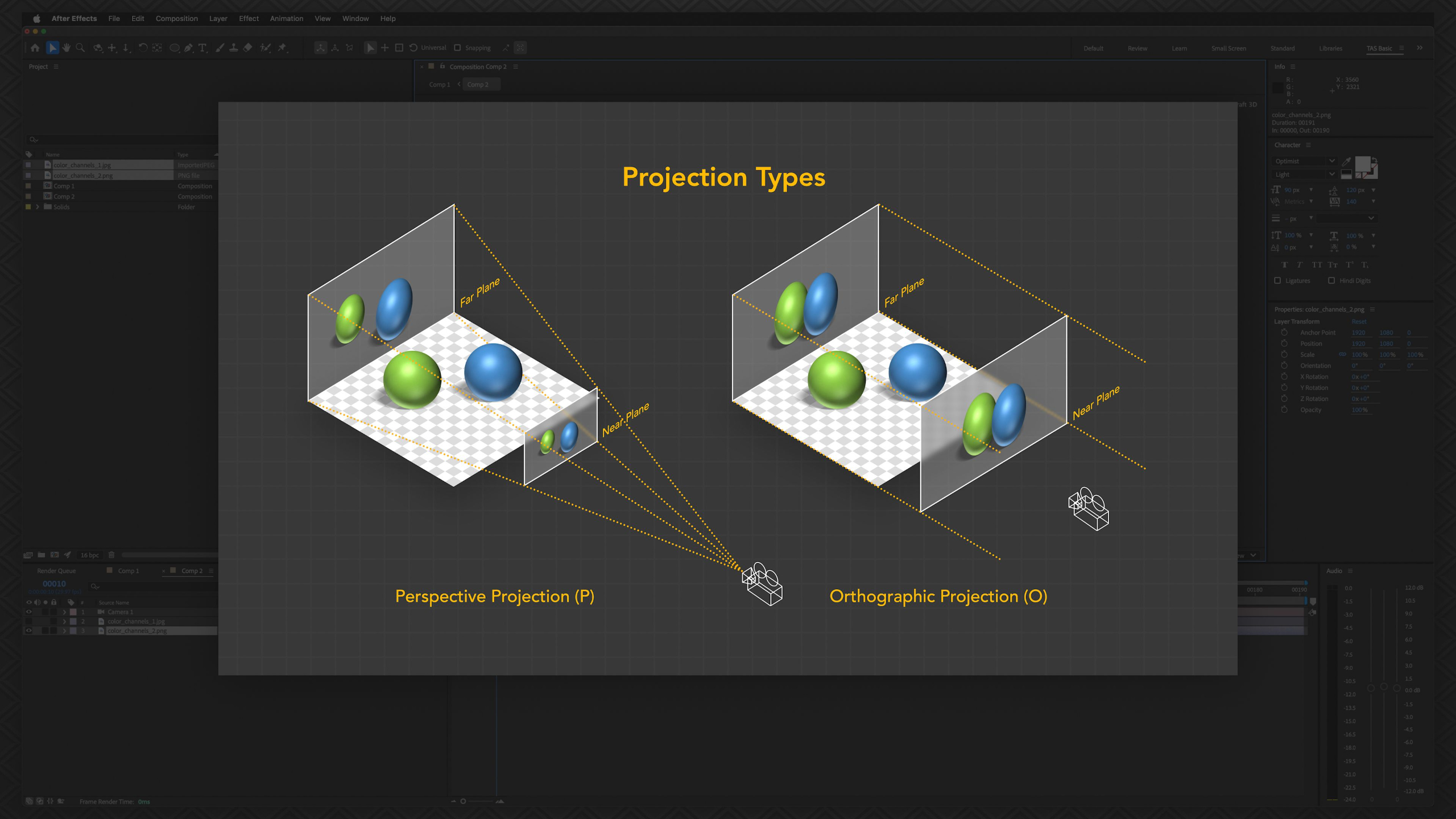
Lesson 12: Cameras & 3D Space
This lesson introduces cameras in After Effects and shows how they can add cinematography, depth, focus, and movement through 3D space. Students learn the basics of one-node and two-node cameras, depth of field, camera tools, motion blur, auto-orient, and simple expression-based camera movement.
Lesson 4: Compositions
This lesson explains how compositions work as the main workspace where students combine media, set frame size, duration, frame rate, resolution, and 3D rendering options. It also walks through the Composition Panel tools so students can navigate, preview, align, crop, compare, and manage their scenes more confidently.
Lesson 13: Lights & Materials
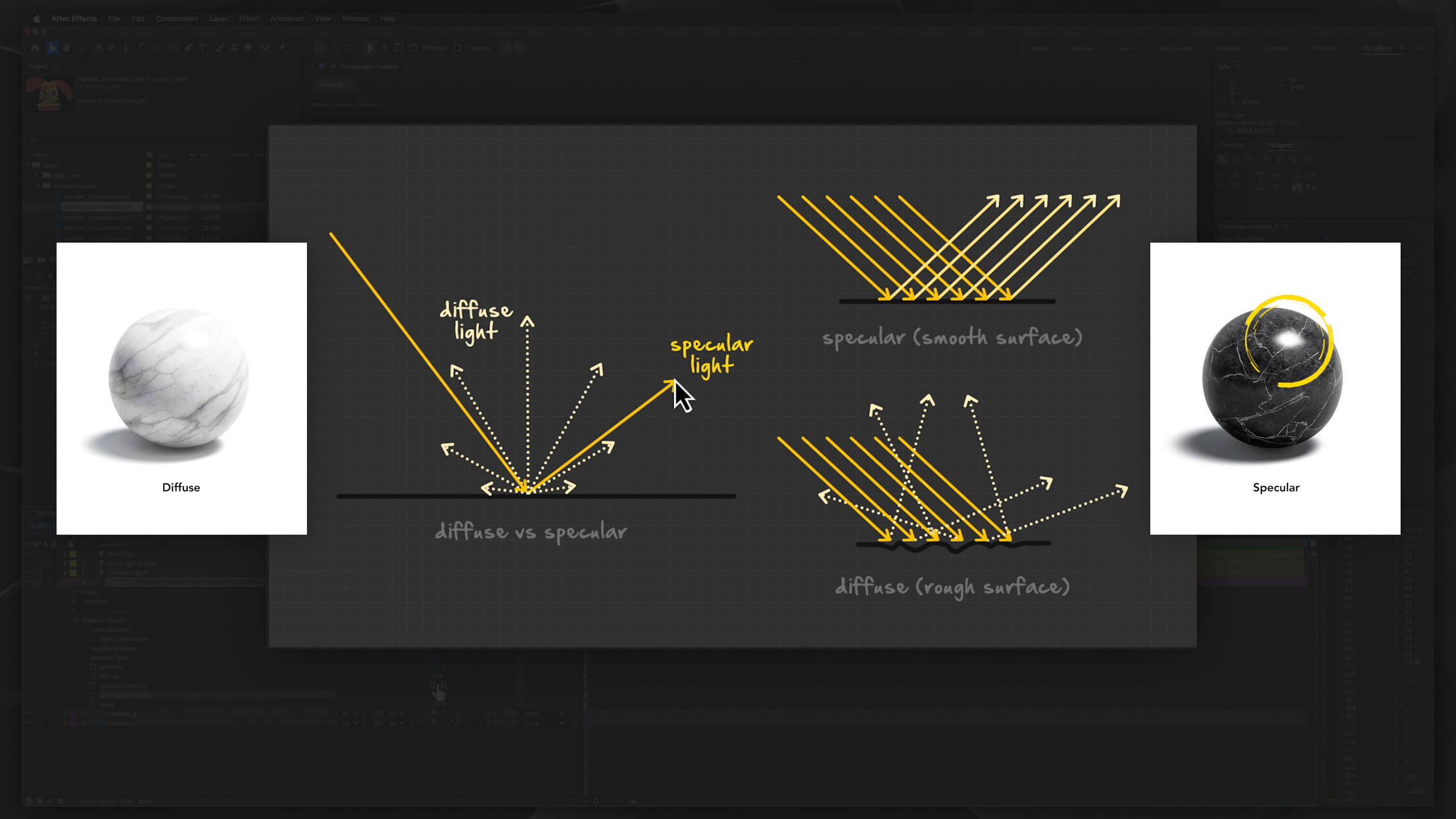
This lesson introduces lights and material settings in After Effects, showing how 3D layers can receive light, cast shadows, and take on different surface qualities like flat, shiny, or metallic. It also explains how to use these tools tastefully so they add depth and mood without overcomplicating the project or slowing down render times.
Lesson 5: Timeline & Layer Controls
This lesson gives students a deeper look at the Timeline Panel, where they’ll organize layers, control visibility, blending, motion blur, parenting, playback, and timing. It also introduces different layer types and the Flowchart view, helping students understand how to keep complex After Effects projects clean, flexible, and easier to manage.
Lesson 14: Paint Tools
This lesson introduces the Paint tools in After Effects, including the Brush, Eraser, Clone Stamp, and Motion Sketch tools. Students learn how to create animated brush strokes, erase or reveal parts of a layer, clone visual details, and record hand-drawn cursor movement to add a more organic feel to their animations.
Lesson 6: Toolbar
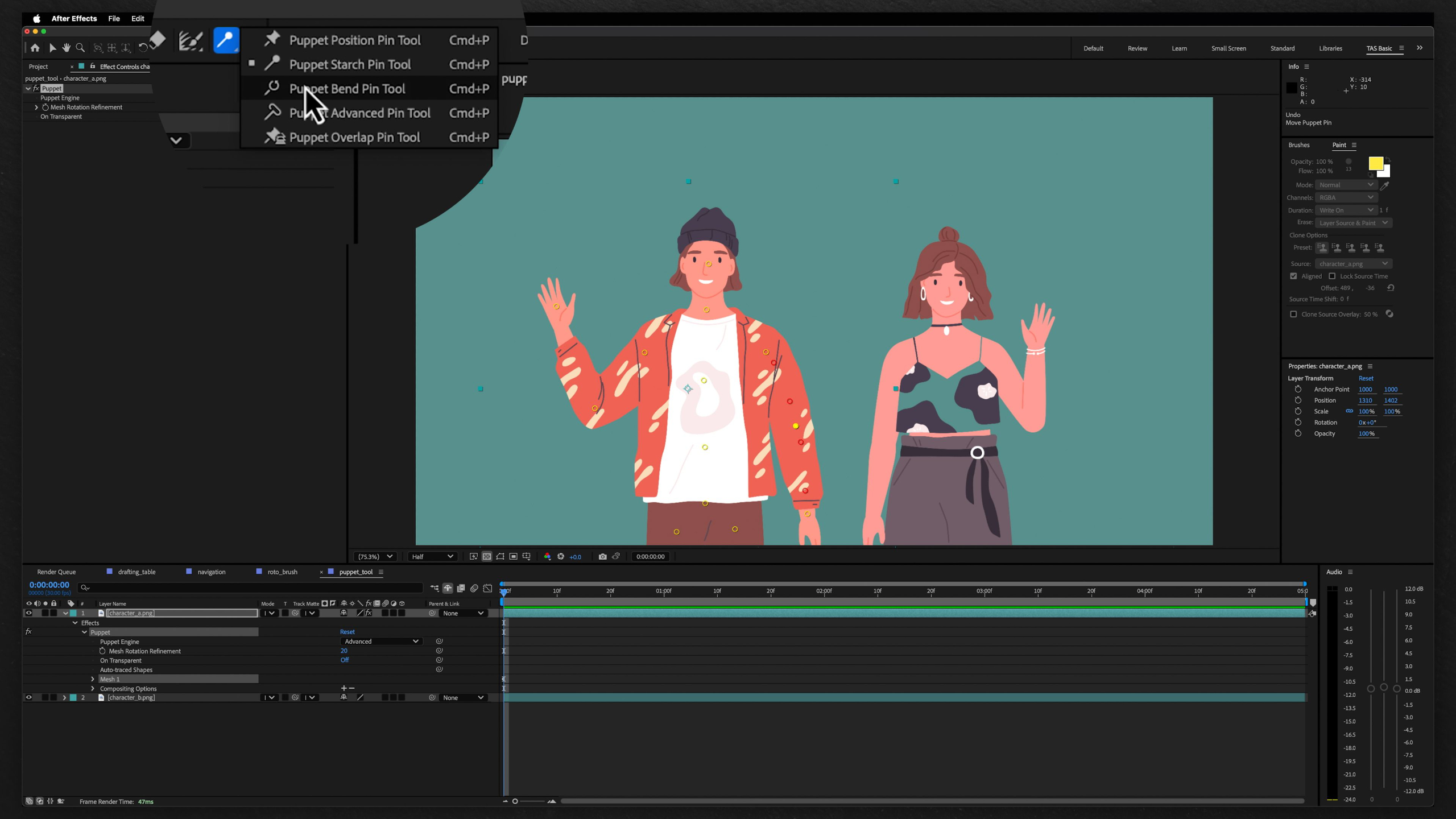
This lesson gives students a practical tour of the After Effects toolbar, covering the main tools they’ll use to select, move, zoom, rotate, draw shapes, create masks, add text, and work in 3D space. It also introduces more advanced tools like Roto Brush, Puppet Pins, painting, cloning, and erasing so students know what’s available as they build their workflow.
Lesson 15: Audio
This lesson explains how audio fits into animation, from scoring and syncing dialogue to lip-sync and sound design. Students learn how to import audio, read waveforms, adjust volume levels, balance a mix, and use basic audio effects inside After Effects.
Lesson 7: Shape Masks & Paths
This lesson digs deeper into shapes, masks, and paths, showing how they can be used to create visuals, hide or reveal parts of an image, animate custom forms, and control complex designs. It also introduces practical masking and rotoscoping techniques, plus useful path tools like null controllers that make animation more flexible and easier to manage.
Lesson 16: Expressions & Scripts
This lesson introduces expressions and scripts as powerful ways to automate repetitive tasks, link properties, create loops, add random motion, and build more efficient After Effects projects. Students learn basic expressions like wiggle, time, and loop, while also getting a first look at scripts, presets, and third-party tools that can speed up their workflow.
Lesson 8: Effects & Adjustment Layers
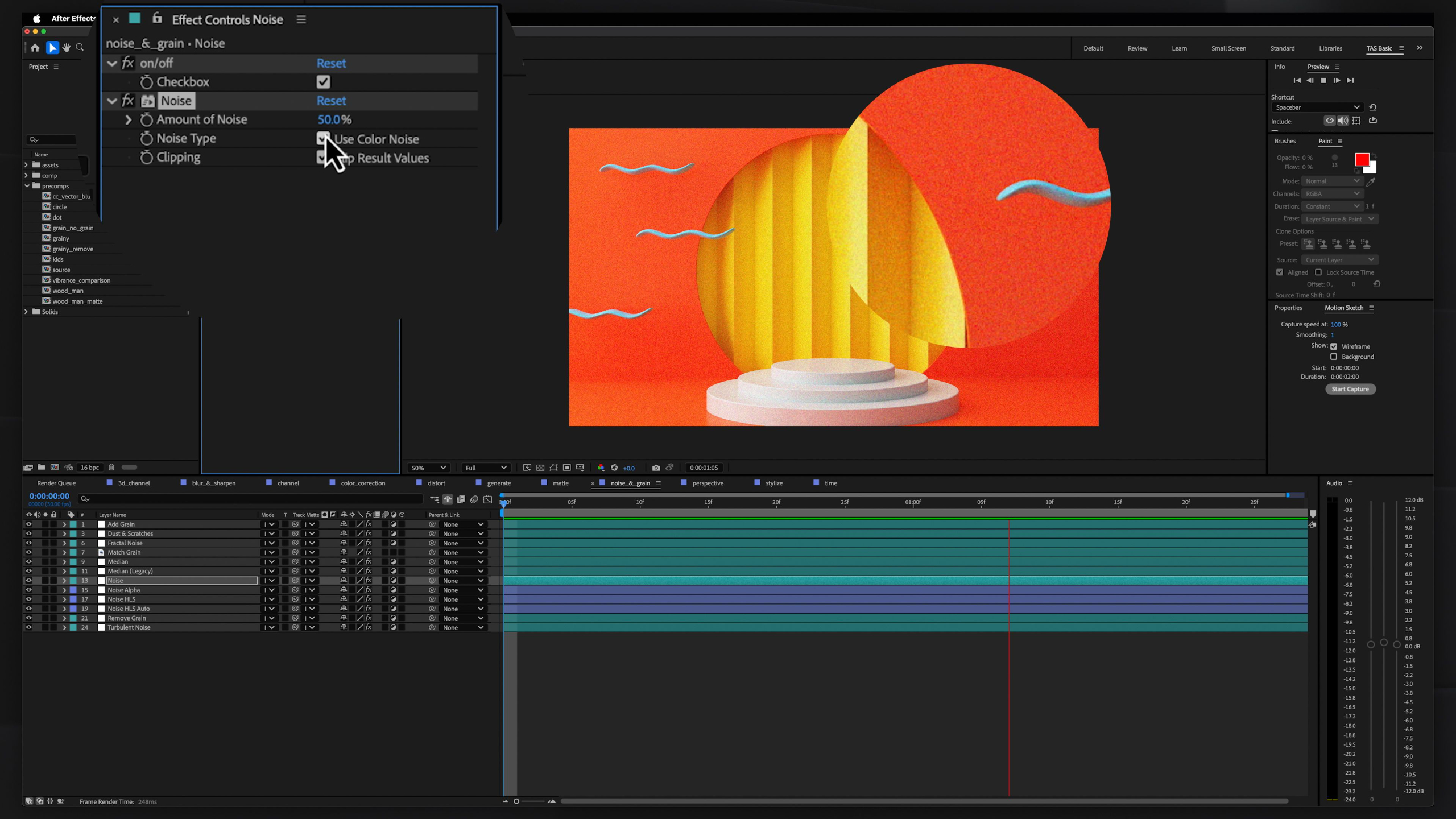
This lesson gives students a broad tour of After Effects effects and adjustment layers, showing how different categories like blur, color correction, distortion, generate, matte, stylize, and time effects can change or enhance a project. It’s meant to be used like a reference guide, helping students learn the most useful effects first and experiment with others as their workflow grows.
Lesson 17: Rendering & Formats
This lesson walks students through the rendering process in After Effects, including previews, pre-renders, the Render Queue, output settings, codecs, image sequences, proxies, and Adobe Media Encoder. It helps demystify how to export projects efficiently while choosing the right format for works-in-progress, final videos, or professional delivery.
Lesson 9: Transform Properties
In this lesson, you'll learn the core transform properties that drive animation in After Effects, including anchor point, position, scale, rotation, and opacity. You'll also explore how these controls work in 3D space, how to use tools like the Pan Behind tool and Pick Whip, and how null objects can be used to control and organize more complex animations.
Lesson 18: Clean-Up & Structure
This final lesson shows students how to clean up and organize After Effects projects so files stay linked, easy to manage, and ready to hand off to clients, studios, or other artists. It also wraps up the Intro to After Effects module by reinforcing the importance of structure, problem-solving, and using these lessons as a reference library moving forward.
Lesson 1: After Effects Overview
This lesson goes over what you will be learning in the Intro to After Effects module and introduces Adobe After Effects as a powerful compositing and animation tool used to combine visuals, create effects, and build 2.5D animated projects. It also explains how students will use After Effects to animate characters, move graphics through 3D space, format projects for different platforms, and build a practical animation pipeline through repetition and experimentation.
Lesson 2: Interface & Settings
This lesson walks students through the After Effects interface, showing how the main panels, workspaces, menus, and preferences are organized. It also helps beginners get comfortable with important settings like auto-save, memory, cache, previews, labels, and performance so they can work faster and avoid common workflow issues later.
Lesson 3: Project Panel
This lesson shows students how to use the Project Panel as the main place for importing, organizing, and managing media in After Effects. It also covers key project settings, file types, footage interpretation, proxies, and workflow tools that help keep bigger animation projects organized and running smoothly.
Lesson 4: Compositions
This lesson explains how compositions work as the main workspace where students combine media, set frame size, duration, frame rate, resolution, and 3D rendering options. It also walks through the Composition Panel tools so students can navigate, preview, align, crop, compare, and manage their scenes more confidently.
Lesson 5: Timeline & Layer Controls
This lesson gives students a deeper look at the Timeline Panel, where they’ll organize layers, control visibility, blending, motion blur, parenting, playback, and timing. It also introduces different layer types and the Flowchart view, helping students understand how to keep complex After Effects projects clean, flexible, and easier to manage.
Lesson 6: Toolbar
This lesson gives students a practical tour of the After Effects toolbar, covering the main tools they’ll use to select, move, zoom, rotate, draw shapes, create masks, add text, and work in 3D space. It also introduces more advanced tools like Roto Brush, Puppet Pins, painting, cloning, and erasing so students know what’s available as they build their workflow.
Lesson 7: Shape Masks & Paths
This lesson digs deeper into shapes, masks, and paths, showing how they can be used to create visuals, hide or reveal parts of an image, animate custom forms, and control complex designs. It also introduces practical masking and rotoscoping techniques, plus useful path tools like null controllers that make animation more flexible and easier to manage.
Lesson 8: Effects & Adjustment Layers
This lesson gives students a broad tour of After Effects effects and adjustment layers, showing how different categories like blur, color correction, distortion, generate, matte, stylize, and time effects can change or enhance a project. It’s meant to be used like a reference guide, helping students learn the most useful effects first and experiment with others as their workflow grows.
Lesson 9: Transform Properties
In this lesson, you'll learn the core transform properties that drive animation in After Effects, including anchor point, position, scale, rotation, and opacity. You'll also explore how these controls work in 3D space, how to use tools like the Pan Behind tool and Pick Whip, and how null objects can be used to control and organize more complex animations.
Lesson 10: Keyframes
This lesson introduces keyframes as the main way to create movement and change over time in After Effects. Students learn how different keyframe types—linear, bezier, easy ease, and hold—affect motion, timing, and interpolation so their animations feel more polished and believable.
Lesson 11: Text
This lesson walks students through the fundamentals of working with text in After Effects, including creating text layers, choosing fonts, adjusting color, spacing, stroke, alignment, and paragraph settings. It also introduces a few practical text workflow tips, like installing fonts, converting Photoshop text into editable After Effects text, and using the Character and Paragraph panels more confidently.
Lesson 12: Cameras & 3D Space
This lesson introduces cameras in After Effects and shows how they can add cinematography, depth, focus, and movement through 3D space. Students learn the basics of one-node and two-node cameras, depth of field, camera tools, motion blur, auto-orient, and simple expression-based camera movement.
Lesson 13: Lights & Materials
This lesson introduces lights and material settings in After Effects, showing how 3D layers can receive light, cast shadows, and take on different surface qualities like flat, shiny, or metallic. It also explains how to use these tools tastefully so they add depth and mood without overcomplicating the project or slowing down render times.
Lesson 14: Paint Tools
This lesson introduces the Paint tools in After Effects, including the Brush, Eraser, Clone Stamp, and Motion Sketch tools. Students learn how to create animated brush strokes, erase or reveal parts of a layer, clone visual details, and record hand-drawn cursor movement to add a more organic feel to their animations.
Lesson 15: Audio
This lesson explains how audio fits into animation, from scoring and syncing dialogue to lip-sync and sound design. Students learn how to import audio, read waveforms, adjust volume levels, balance a mix, and use basic audio effects inside After Effects.
Lesson 16: Expressions & Scripts
This lesson introduces expressions and scripts as powerful ways to automate repetitive tasks, link properties, create loops, add random motion, and build more efficient After Effects projects. Students learn basic expressions like wiggle, time, and loop, while also getting a first look at scripts, presets, and third-party tools that can speed up their workflow.
Lesson 17: Rendering & Formats
This lesson walks students through the rendering process in After Effects, including previews, pre-renders, the Render Queue, output settings, codecs, image sequences, proxies, and Adobe Media Encoder. It helps demystify how to export projects efficiently while choosing the right format for works-in-progress, final videos, or professional delivery.
Lesson 18: Clean-Up & Structure
This final lesson shows students how to clean up and organize After Effects projects so files stay linked, easy to manage, and ready to hand off to clients, studios, or other artists. It also wraps up the Intro to After Effects module by reinforcing the importance of structure, problem-solving, and using these lessons as a reference library moving forward.